
Google Analytics 4 Tutorial: Step-by-Step for Beginners
By Terrence Chung, Co-Founder · Updated 14 July 2026 · 9 min read
Jump to section
- Before you start
- Step 1: Create your GA4 account and property
- Step 2: Set up a web data stream
- Step 3: Install GA4 on your website
- Step 4: Verify with Realtime and DebugView
- Step 5: Create your key events
- Step 6: Link Google Ads
- Step 7: Link Search Console
- Reading your first reports
- A first taste of Explorations
- Seven beginner mistakes to avoid
- Set up once, benefit for years
- FAQ
Google Analytics 4 (GA4) tells you who visits your website, where they came from and what they did — for free. The problem: most beginners install the tag, see numbers moving, and never set up the two or three things that make the data useful. This tutorial fixes that. In roughly an hour, you will go from nothing to a GA4 property that tracks the actions that matter, feeds conversions to Google Ads, and gives you reports you can actually read.
This is the hands-on companion to our GA4 essential guide — read that one for what GA4 is and why it works the way it does; follow this one to get it done.
Before you start
You need three things:
- A Google account (use a business account, not a personal one — you will be sharing access later).
- Access to your website's code, or better, a Google Tag Manager container already installed.
- Ten minutes of honesty about what a "result" is on your site: a purchase? A form submission? A WhatsApp click? Write it down — it becomes your key event in Step 6.
Step 1: Create your GA4 account and property
- Go to analytics.google.com and sign in.
- Click Admin (bottom left) → Create → Account. Name it after your company, not your website — one account can hold several properties.
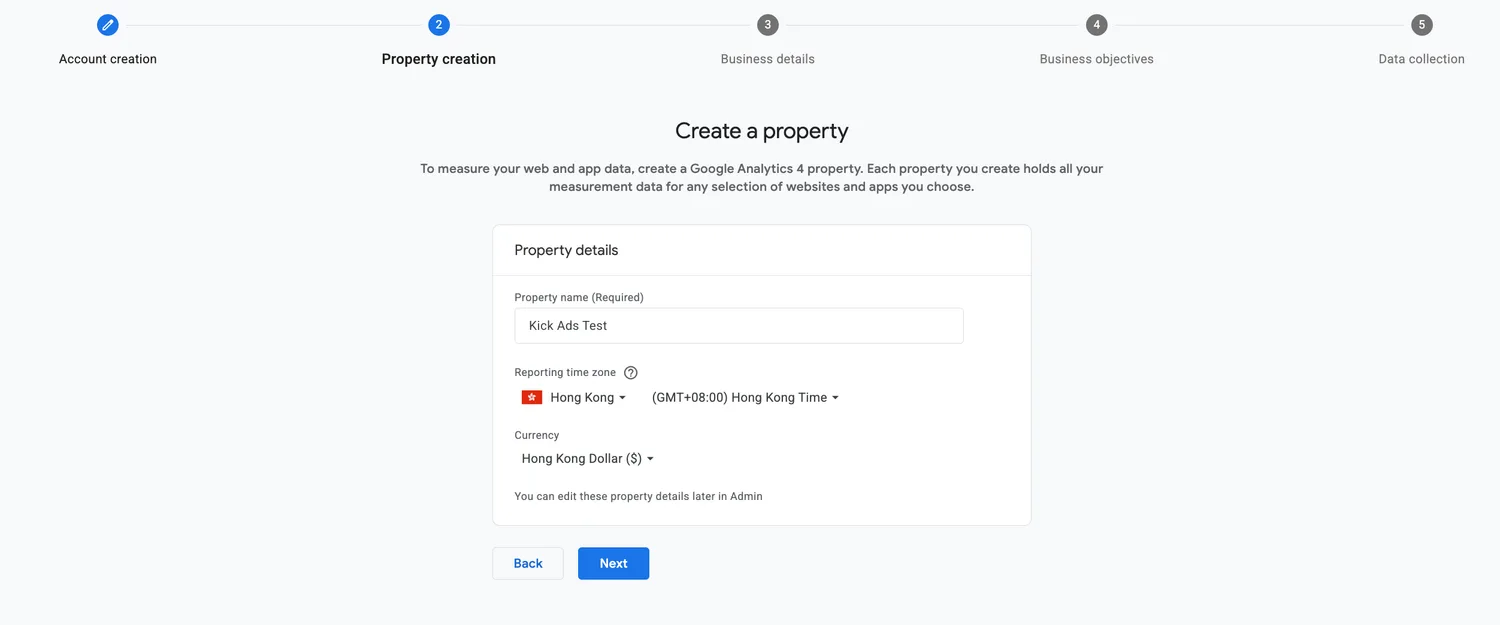
- Create a Property named after the website. Set the time zone (Hong Kong) and currency (HKD) now: they affect how every report groups your days and revenue, and changing them later does not fix historical data.
- Answer the business questions, accept the terms, and you land in your new property.
Step 2: Set up a web data stream
A data stream is the pipe between your website and GA4.
- In Admin → Data collection and modification → Data streams, choose Web.
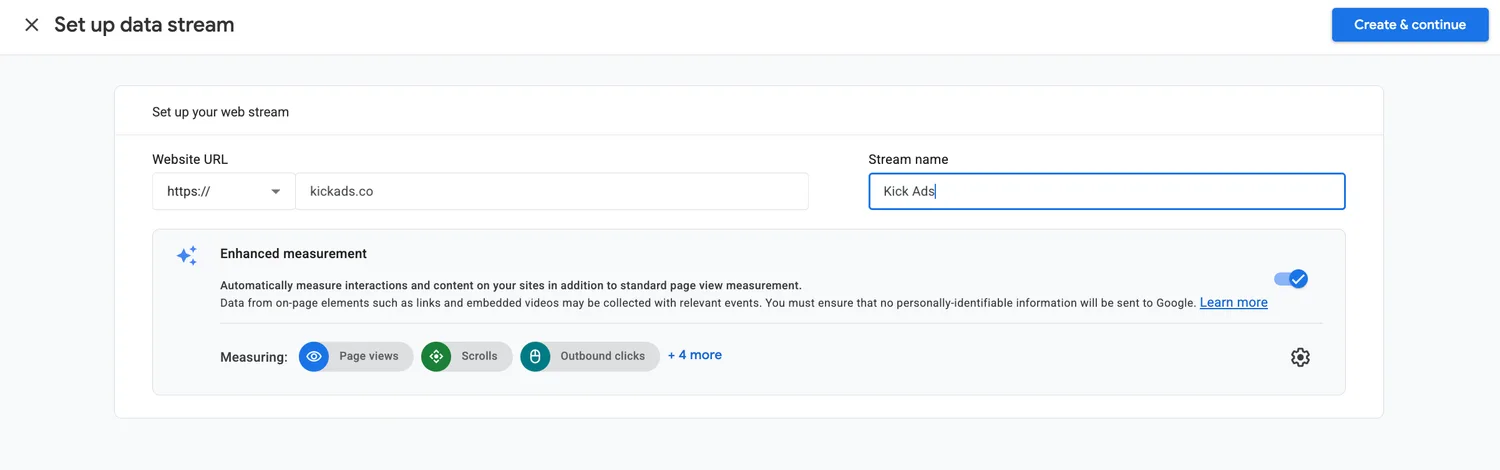
- Enter your domain and a stream name.
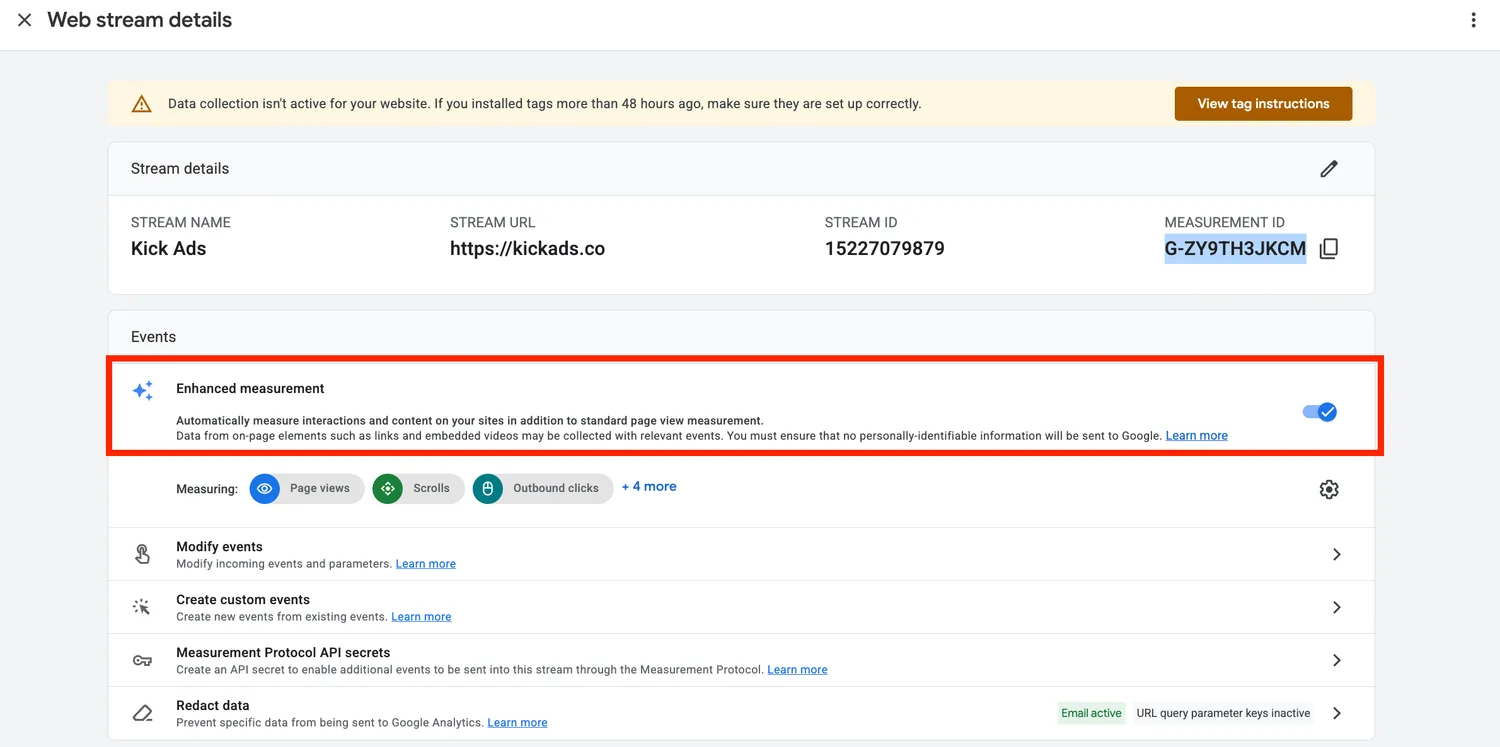
- GA4 gives you a Measurement ID that looks like
G-XXXXXXXXXX. Copy it — it is the only thing you need from this screen.
On the same screen: Enhanced measurement
GA4 tracks more than pageviews out of the box. In your data stream settings, the Enhanced measurement toggle covers scrolls (90% depth), outbound link clicks, site search, video engagement and file downloads — no code required.
Leave it on, but open the gear icon and check two things:
- Site search: if your site has a search box, make sure the query parameter (usually
qors) is listed, so GA4 records what people search for. - Form interactions: GA4's automatic
form_submitfires on any form activity, including failed submissions on some sites. If lead forms are your business, you will build a proper key event in Step 5 instead of trusting this one blindly.
Step 3: Install GA4 on your website
Two clean ways to do this — pick one, not both (running two copies of the tag double-counts everything).
Option A — Google tag directly. Paste the Google tag snippet (from the data stream screen, under "View tag instructions") into the <head> of every page, or plug the Measurement ID into your platform's field: Shopify, WordPress and most site builders have a native Google Analytics setting.
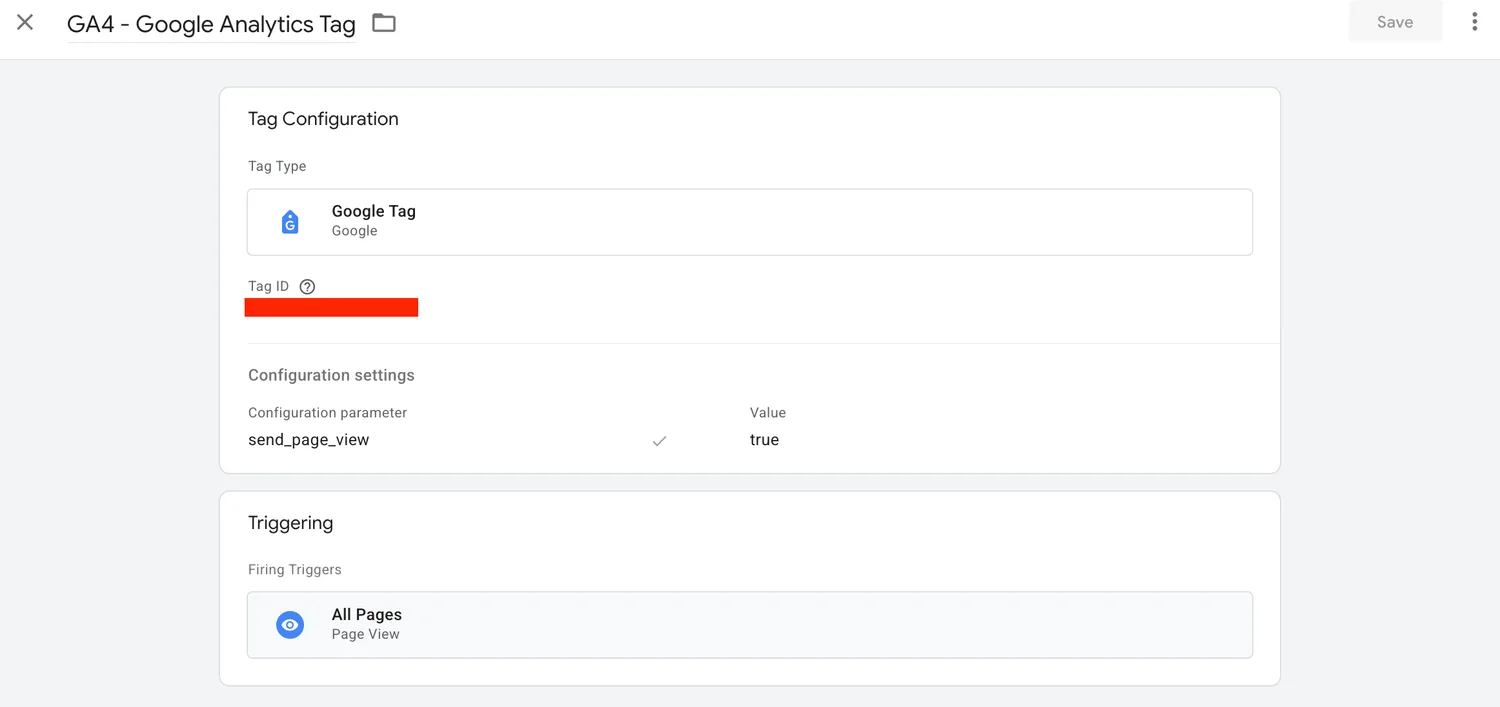
Option B — Google Tag Manager (what we use on client accounts). In GTM, create a Google tag, paste the Measurement ID, set the trigger to All Pages, and publish. Everything you add later — remarketing tags, conversion tags, click tracking — then lives in one container instead of scattered code. If GTM is new to you, our GTM beginner's guide walks through the whole setup.
Step 4: Verify with Realtime and DebugView
Before configuring anything else, prove the tag works.
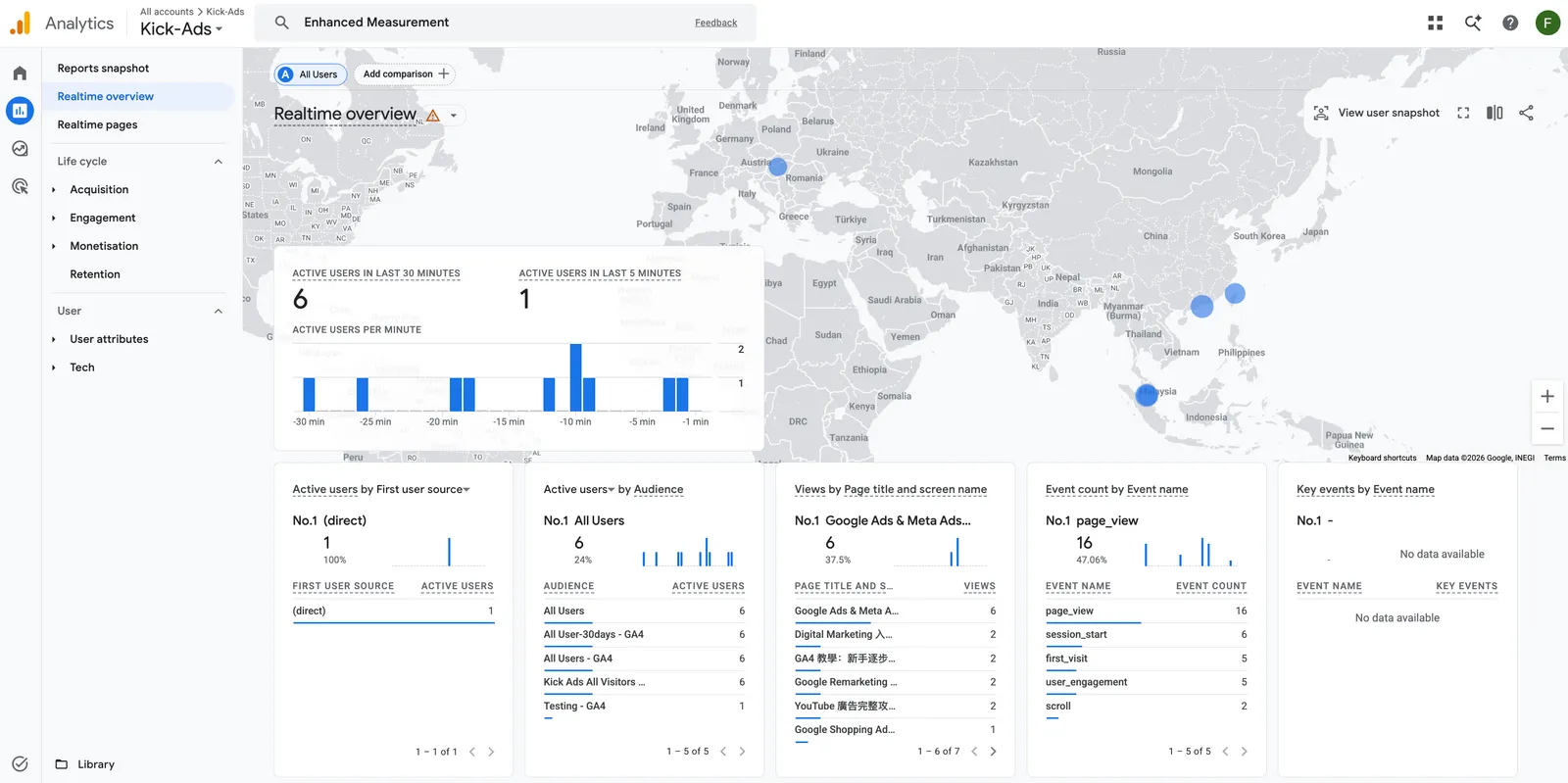
- Open your website in another tab, click around, then check Reports → Realtime. You should see yourself as an active user within seconds.
- For a per-event view, use Admin → DebugView with the Google Tag Assistant connected, or preview mode in GTM. Every scroll and click shows up as a labelled event in real time.
If nothing appears: hard-refresh, check for an ad blocker, and confirm the Measurement ID matches the property you are looking at. Those three cover 90% of "GA4 isn't tracking" cases.
Step 5: Create your key events
This is the step most beginners skip, and it is the whole point of the tool. A key event (called "goals" back in the Universal Analytics era) is the action you decided counts as a result.
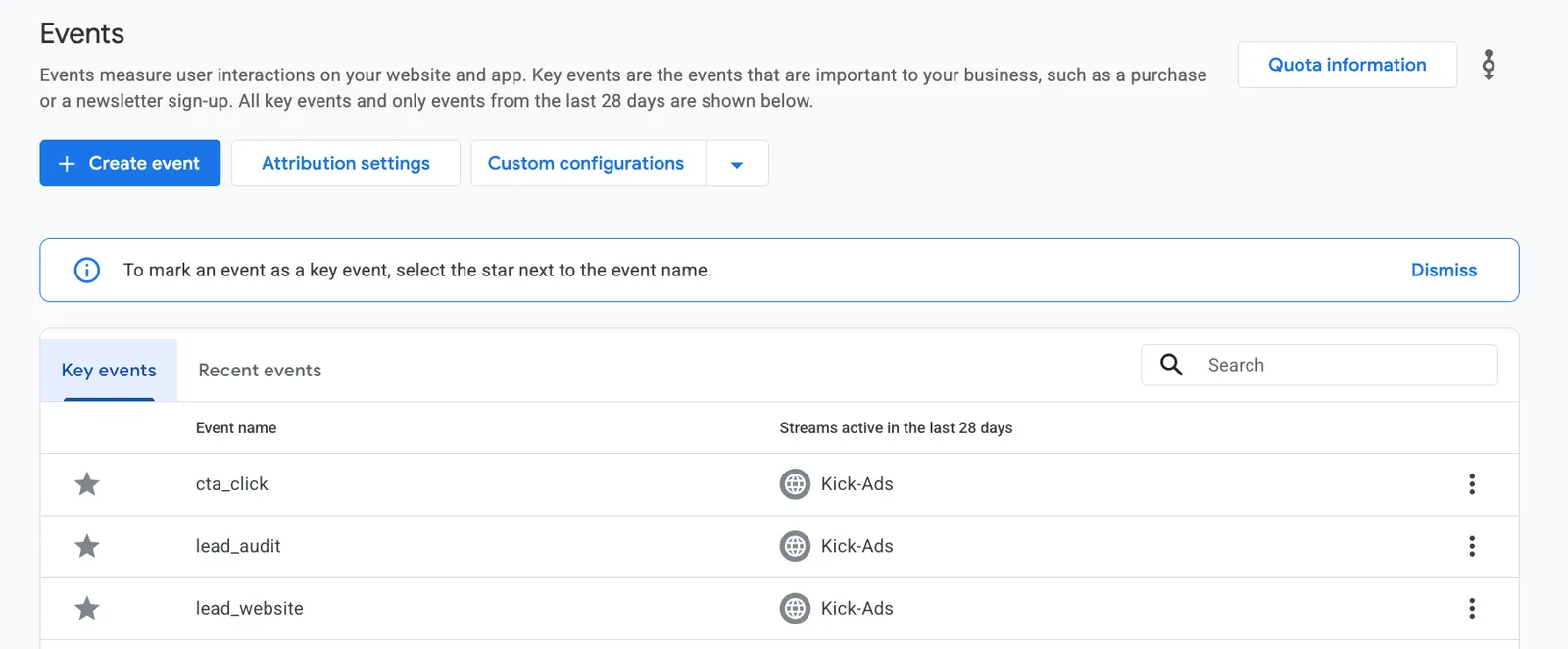
For an action GA4 already tracks — say form_submit or file_download:
- Go to Admin → Events, find the event, and flip the Mark as key event toggle.
For an action GA4 does not track by default — say a visit to your thank-you page:
- Admin → Events → Create event.
- Name it (e.g.
generate_lead_thankyou), with conditions likeevent_nameequalspage_viewANDpage_locationcontains/thank-you. - Wait for it to fire once (test it yourself), then mark it as a key event under Admin → Key events.
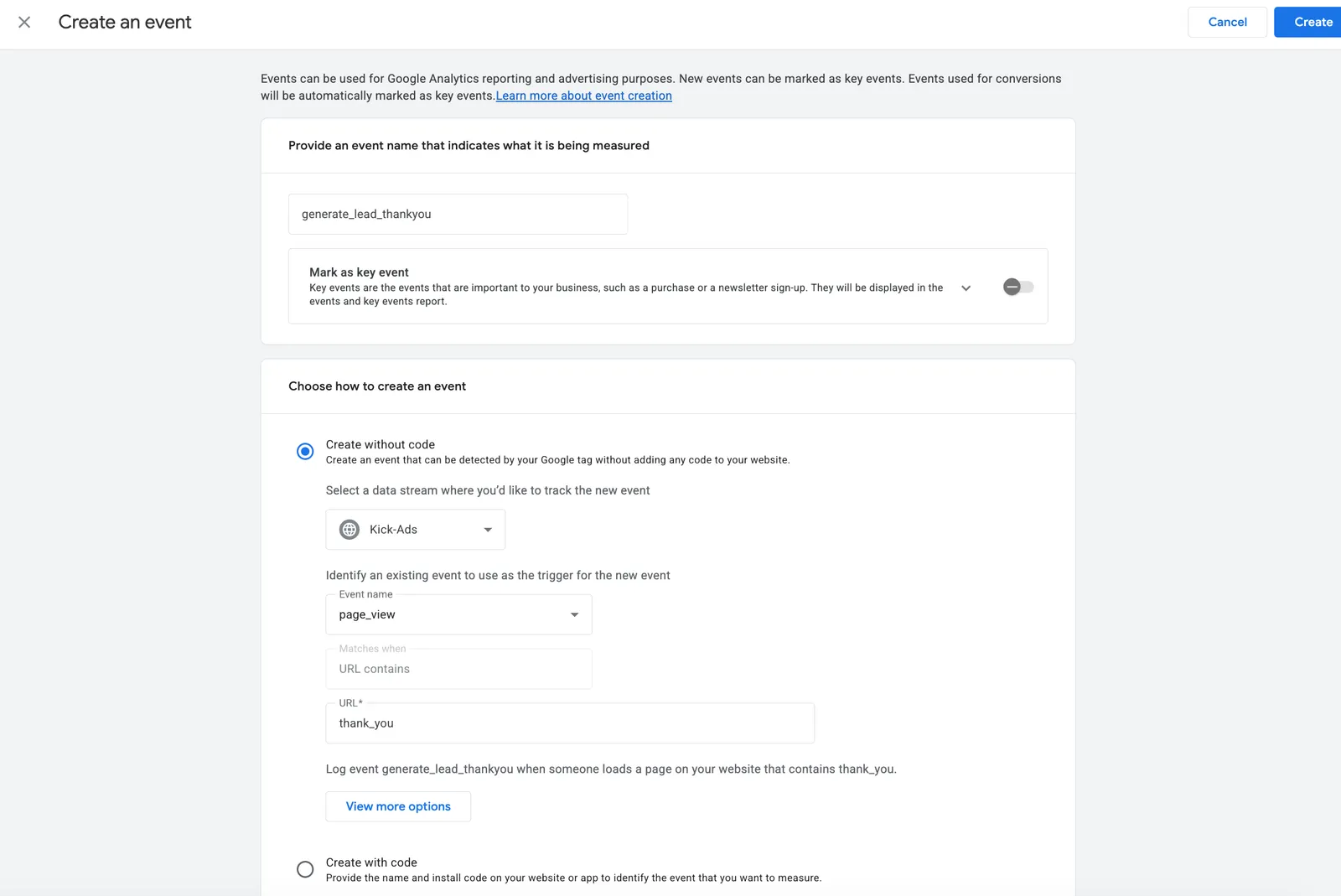
Where GA4’s "Create event" stops and GTM begins: GA4’s Create event can only derive an event from an existing one (like page_view), which is fine for a thank-you page. But to track an interaction GA4 doesn’t collect automatically — a specific button click, a WhatsApp link, a particular form success — you first build and fire a custom event in GTM with a trigger, then mark it as a key event in GA4. See our GTM fundamentals guide for the how-to.
Ecommerce purchases are a special case: platforms like Shopify send the purchase event with revenue automatically once you connect GA4; custom carts need the ecommerce events implemented via GTM. That is a bigger job — the measurement half of our Google Ads conversion tracking guide covers how the pieces fit.
Step 6: Link Google Ads
If you run ads, this link is what turns GA4 from a reporting tool into an optimisation signal.
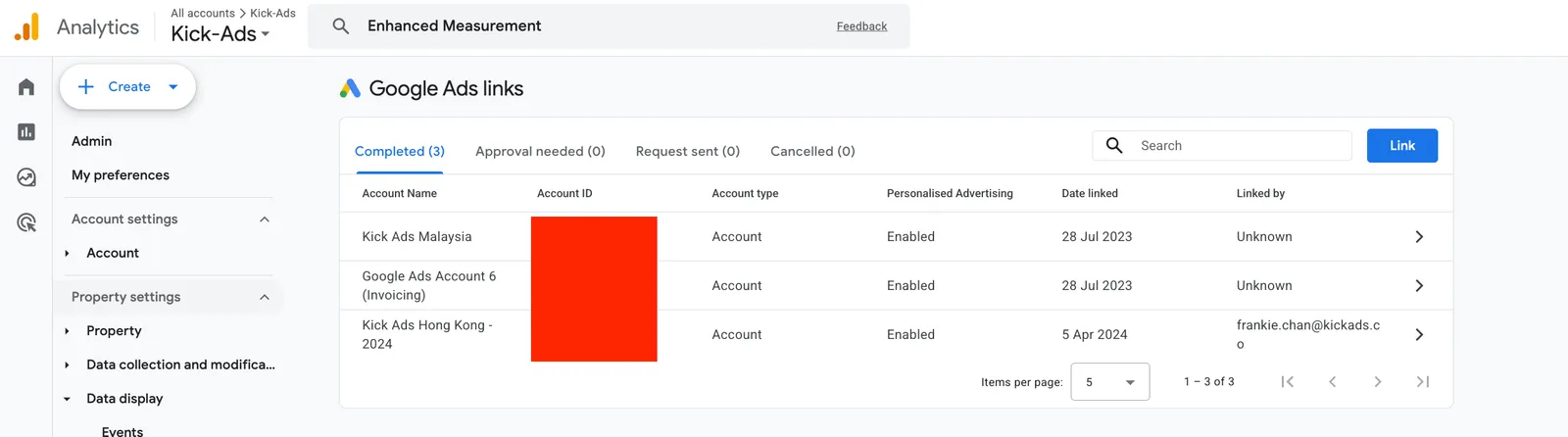
- Admin → Product links → Google Ads links → Link, choose your Google Ads account, keep personalised advertising on, and confirm.
- In Google Ads, you can now import GA4 key events as conversions (Goals → Conversions → New conversion action → Import) and build audiences from GA4 segments.
One warning from the accounts we audit: if you import a GA4 key event and run a native Google Ads conversion tag for the same action, you are double-counting. Pick one primary source per action — our conversion tracking guide explains which to pick when.
Step 7: Link Search Console
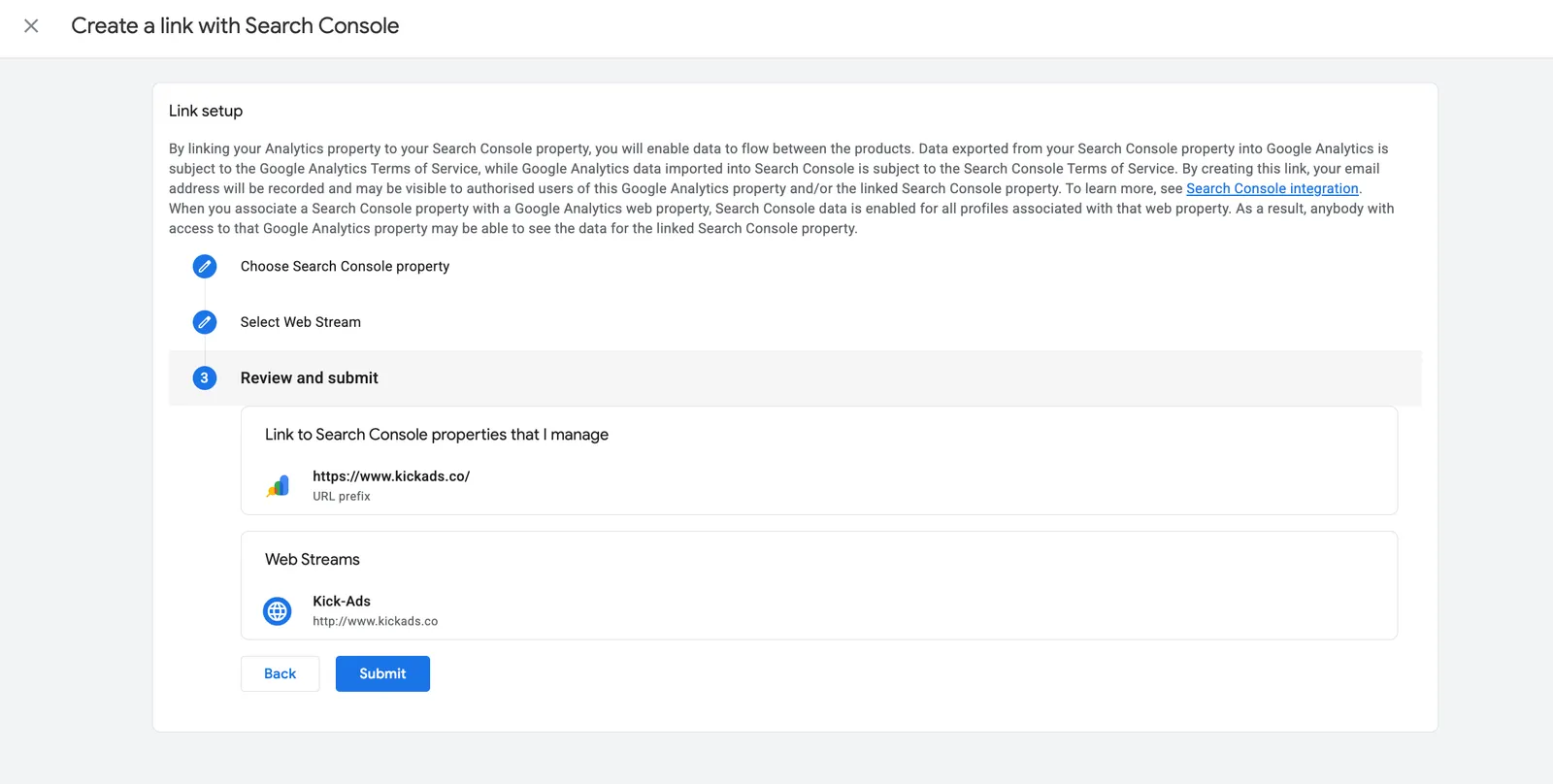
Two minutes, permanently useful: Admin → Product links → Search Console links. This pulls your Google organic queries, impressions and positions into GA4's Search Console reports, so you can see which searches bring traffic that actually engages.
Reading your first reports
GA4's report list is long; a beginner needs four screens:
- Realtime — is the site alive right now, and did my test events fire?
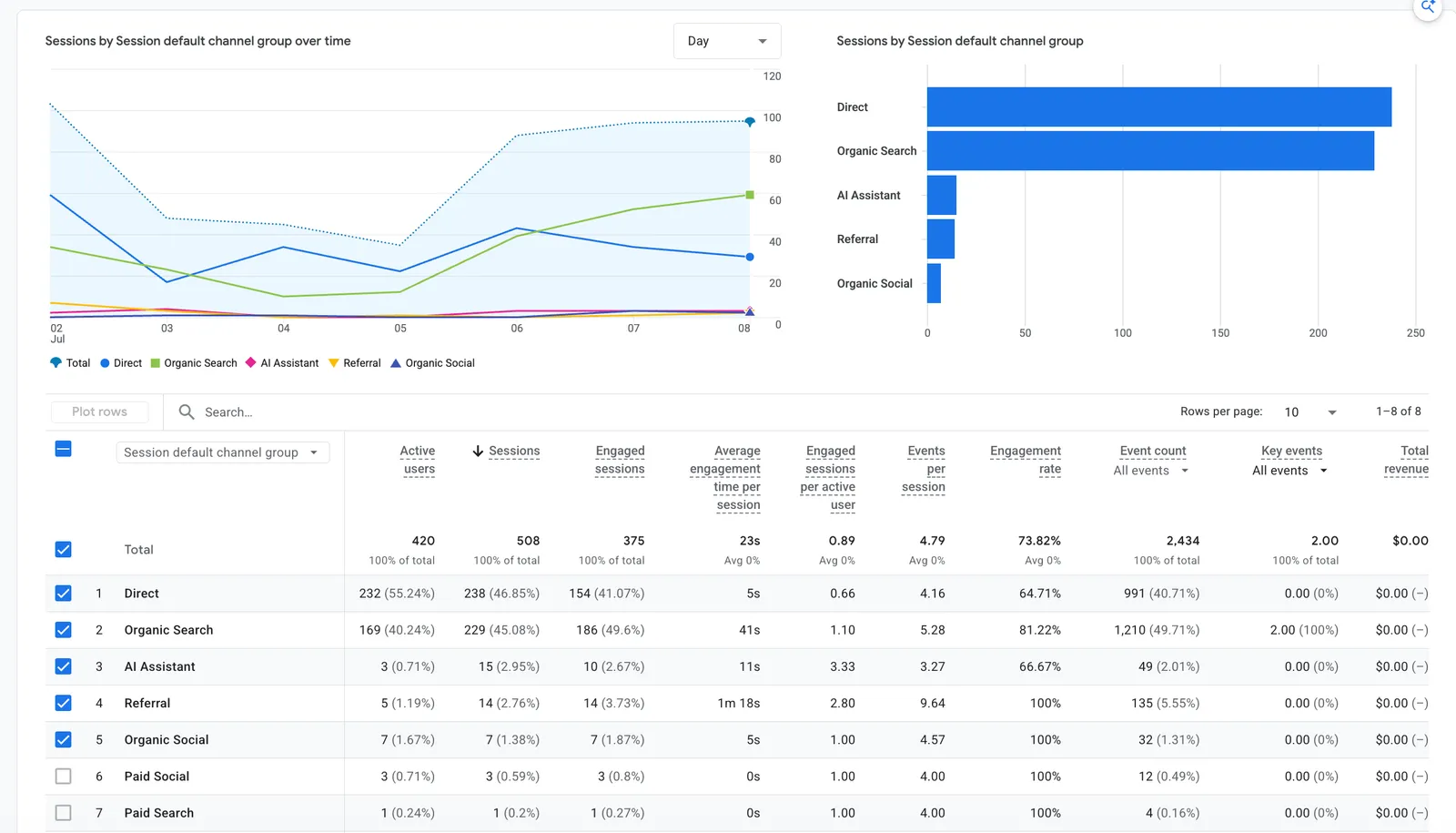
- Reports → Acquisition → Traffic acquisition — where sessions come from, grouped by channel: Organic Search, Paid Search, Direct, Referral, Organic Social and so on. If the channel labels confuse you, our GA4 channel grouping explainer breaks down all of them.
- Reports → Engagement → Pages and screens — which pages people actually view, with engagement time. The Landing page report next to it shows where visitors enter — your best marketing pages.
- Reports → Monetization — for ecommerce: revenue, purchases and product performance.
The step that matters most: judge quality, not just volume. Go back to the Traffic acquisition report, switch the dimension from "channel" to session source / medium, and add Key events and Key event rate as columns. Now you are not looking at "which source sent the most people" but "which source sent the most people who convert."
A source with 1,000 sessions and zero key events is worth far less than one with 100 sessions and 10 key events. Judge every source and every campaign by whether it actually produced key events — this is what turns GA4 from a traffic report into a decision tool, and it is the first screen we open when we review any account.
A first taste of Explorations
When the standard reports stop answering your questions, Explore is GA4's build-your-own-report workshop. Two templates worth trying early:
- Free form — drag dimensions (landing page, channel, device) against metrics (sessions, key events) into a custom table.
- Funnel exploration — define steps like view product → add to cart → purchase, and see exactly where people drop off.
Do not get lost in here in week one. Standard reports answer most beginner questions; Explorations are for the specific ones.
Seven beginner mistakes to avoid
- No key events. Traffic reports without conversion context are entertainment, not analytics.
- Testing changes without DebugView. Guessing whether a tag fired wastes hours.
- Leaving data retention at 2 months. Admin → Data settings → Data retention → set to 14 months, day one. This affects Explorations, and it is not retroactive.
- Not filtering your own traffic. Define internal IPs under Data streams → Configure tag settings → Define internal traffic, then activate the filter in Data settings → Data filters.
- Panicking when GA4 and Google Ads numbers differ. They will never match — different attribution, different counting. The essential guide explains why.
- Copying UA instincts. Bounce rate, sessions and "views" all mean different things now. Learn engagement rate instead.
- Two tags, double data. One install method. If numbers look impossibly good, check for a duplicate tag first.
Set up once, benefit for years
GA4 rewards an hour of setup with years of better decisions: which channels deserve budget, which pages earn attention, which campaigns produce customers instead of clicks. Work through the seven steps, avoid the seven mistakes, and you are ahead of most websites we audit.
Kick Ads is a Google Partner agency in Hong Kong. We have set up measurement and managed Google Ads for businesses across Hong Kong and Malaysia since 2017 — if you would rather have this configured and audited by people who do it weekly, get in touch.
FAQ
Is Google Analytics 4 free? Yes. GA4 is free with generous limits; the paid Analytics 360 tier exists for very large enterprises, and a typical SMB will never need it.
How long does GA4 take to set up? About an hour for account, tag, verification, key events and the Google Ads link if you follow the steps in order. Custom ecommerce tracking can take longer.
Do I need Google Tag Manager to use GA4? No, but it is the cleaner setup. GTM keeps GA4, conversion tags and future pixels in one container, so you rarely need to touch site code again.
What replaced goals in GA4? Key events. You mark any collected event as a key event in Admin, and it becomes your conversion measure; Google Ads can import key events as conversions for bidding.
Why is my GA4 showing no data? The usual causes are a wrong or duplicate Measurement ID, an ad blocker on your own browser, or checking a different property than the one the tag sends to. Verify with Realtime and DebugView first.

About the author
Terrence Chung · Co-Founder, Kick Ads
Terrence is an ex-Googler, paid media and SEM trainer. He has managed Google Ads for ecommerce and lead generation businesses across Hong Kong and Malaysia since 2017, working closely on account strategy and optimisation direction.