
Google Ads Conversion Tracking: Complete Setup Guide
By Terrence Chung, Co-Founder · Updated 13 July 2026 · 9 min read
Jump to section
Conversion tracking is the single most important setup in a Google Ads account — and the one most SMEs skip. Plenty of businesses still judge their ads on cost-per-click (CPC) or click-through rate (CTR) alone. That is not enough: a high CTR only proves your ad attracted clicks, not that it produced enquiries or sales. With conversion tracking in place, you can measure the return of every keyword and campaign, put budget where it earns, and give Smart Bidding the signal it needs to optimise. (If you are new to search advertising, start with our complete Google Ads SEM guide.)
What is conversion?
You might ask what triggers a conversion. A common misconception is that conversions only apply to online stores and always mean a completed purchase. But the truth is, even if you are not running an online store, you still need to set up conversion tracking for your business. Conversion is any meaningful action done by visitors on your website, or any action that brings a positive business impact to your company, such as subscribing to a Newsletter, downloading a whitepaper and even viewing the important pages on your website. Some people treat the number of pages a visitor views, or how long they stay, as a conversion. In my opinion, this is not a very indicative action. Although it can be seen as a reference, it should not be used as the optimization direction of keyword advertising.
Take Kick Ads as an example, we can set up conversion tracking for the following actions.
1. Whatsapp Button Click or Phone Button Click

2. Subscribe E-Books
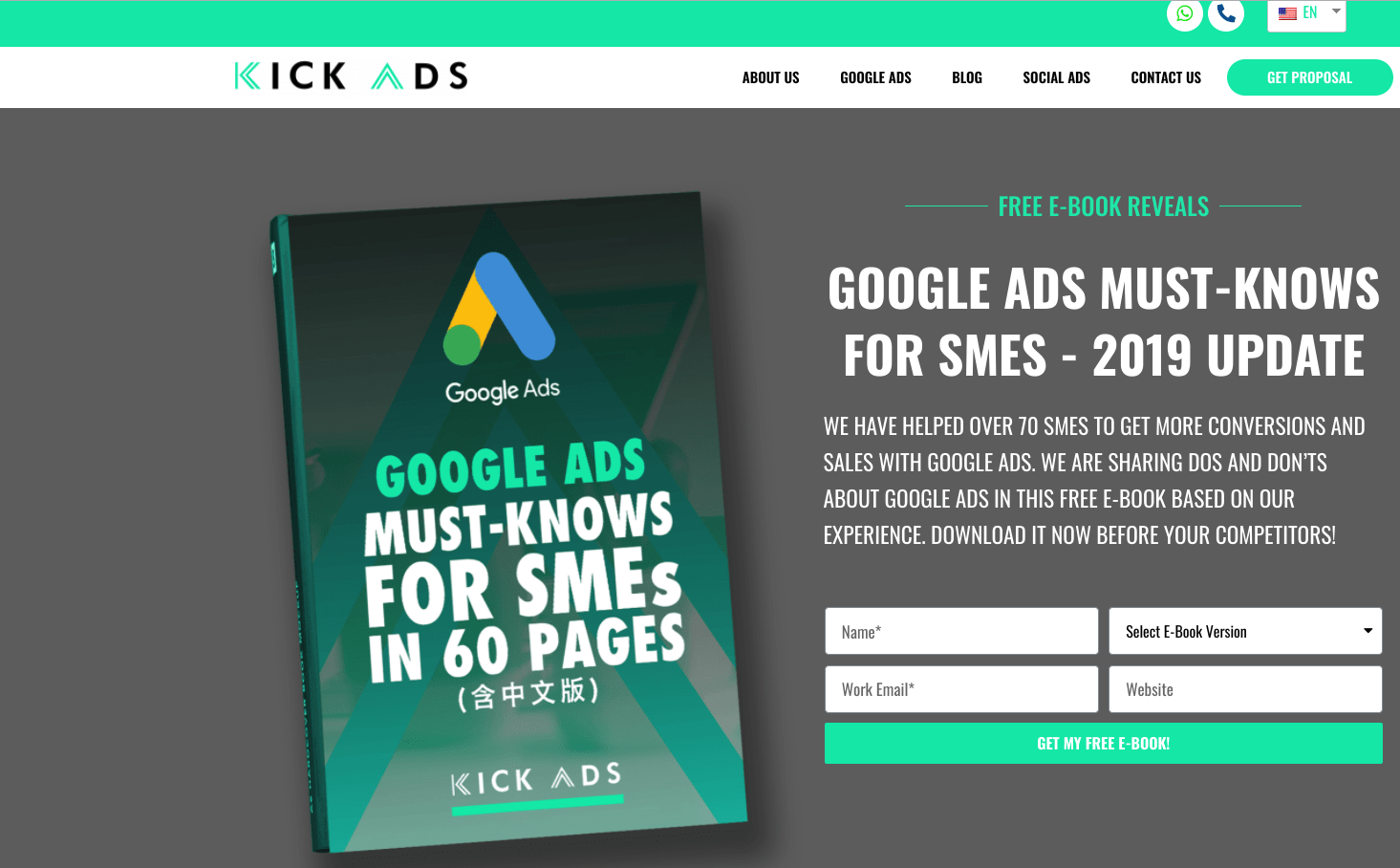
3. Contact Us Form Submission
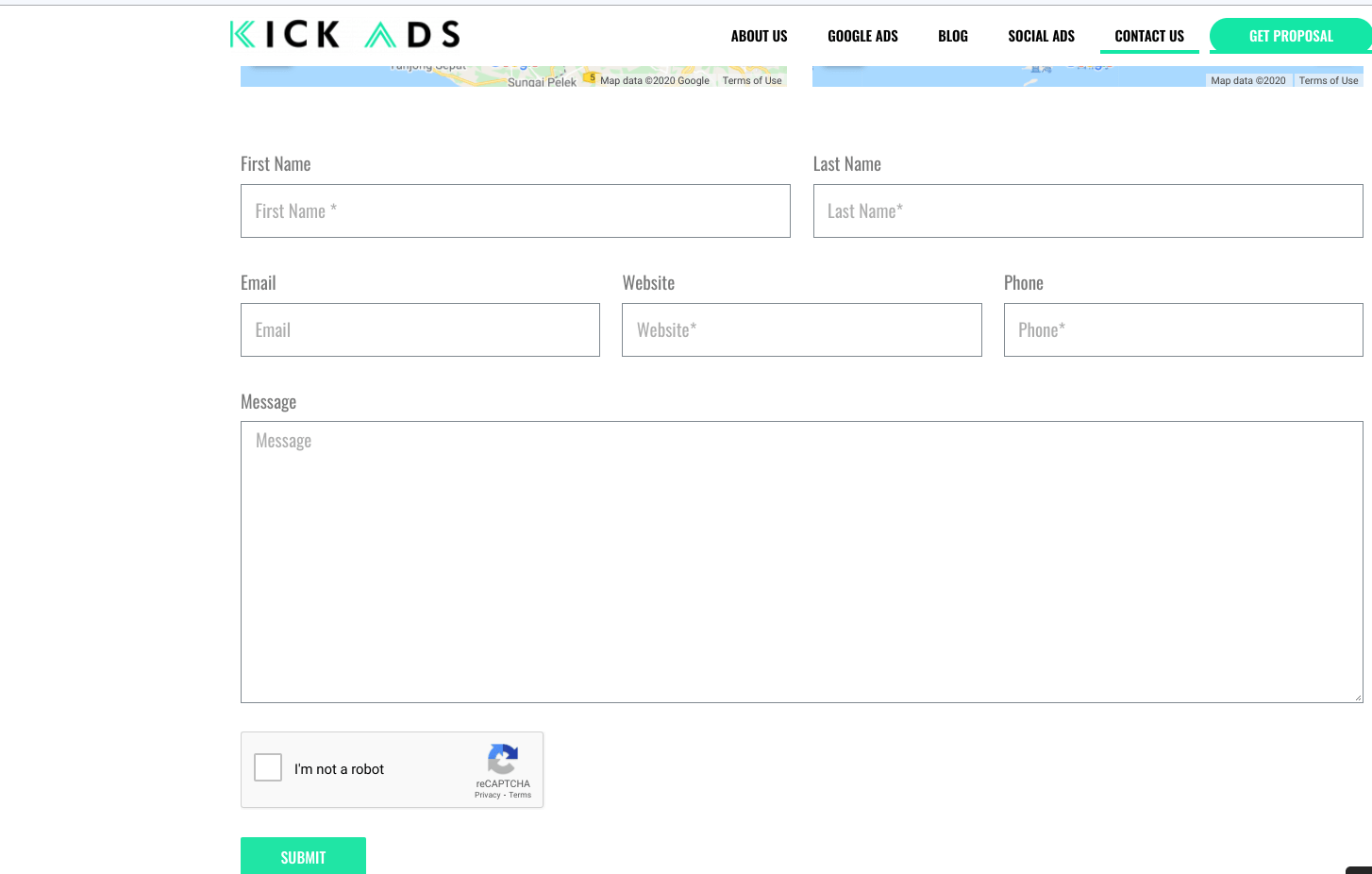
These are the things/actions that will bring positive impact to my business.
How to set up conversion tracking?
For general websites, there are two methods for setting up conversion tracking. The first is to create a conversion action natively in Google Ads and install its tag (directly or through Google Tag Manager). The second is to track the event in Google Analytics 4, mark it as a key event (GA4’s replacement for the old “goals”), and import it into Google Ads — see our Google Analytics guide for the GA4 side.
In 2026 our default recommendation is the native Google Ads tag for your primary conversion actions: it reports faster, supports enhanced conversions, and feeds Smart Bidding the cleanest signal. Importing GA4 key events is a fine lighter-weight route when the action is already tracked in GA4 — just never count the same action from both sources, or you will double-count. Button clicks, form submissions and video plays can all be captured through Google Tag Manager — see our GA4 event tracking with GTM guide. The steps below walk through the native Google Ads setup.
Steps to set up conversion tracking in Google Ads
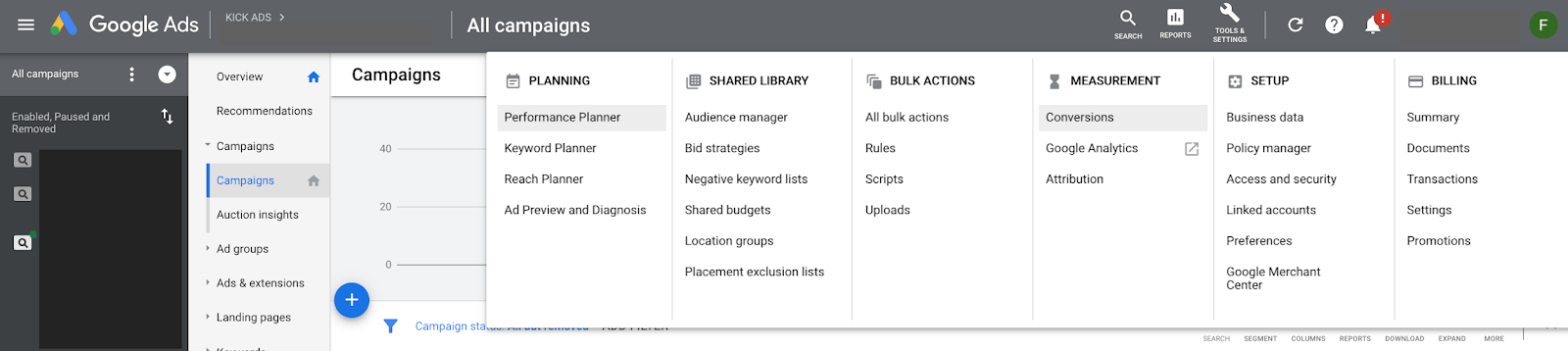
1. In the left navigation, open “Goals” → “Conversions” → “Summary”. (In the old interface this lived under “Tools and Settings”.)
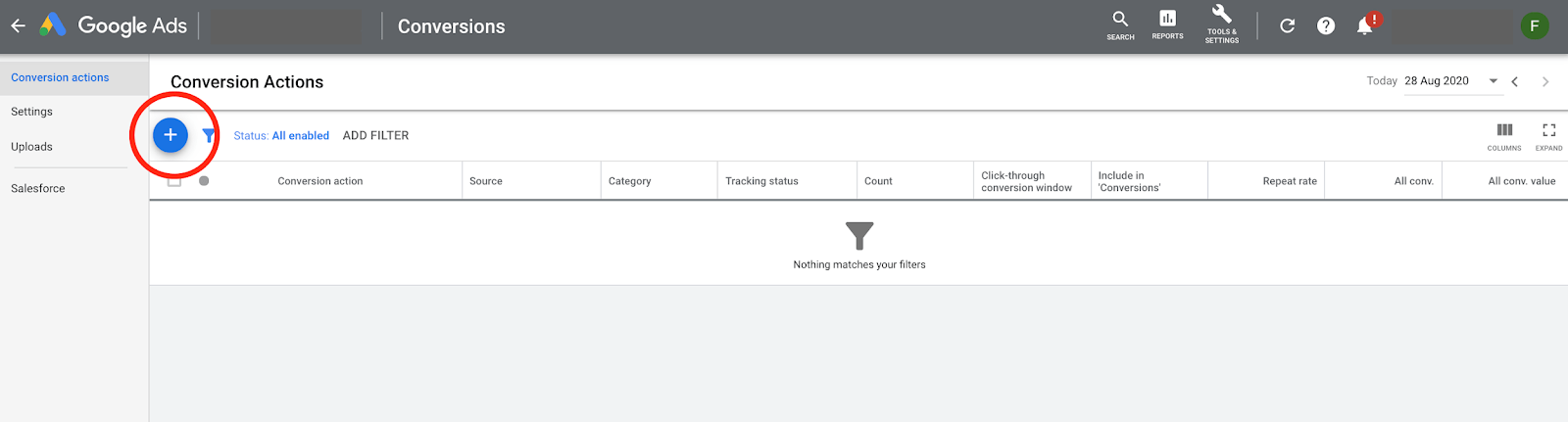
2. Click “+” button
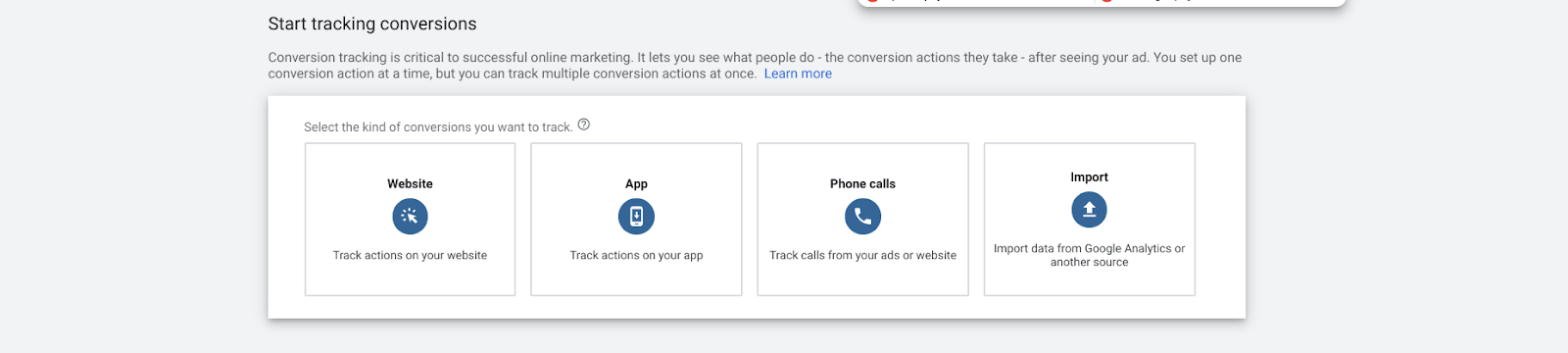
**3. “Website” or “Import” are more applicable for general websites. Here, I will talk about “Website” first.
**If you have marked an event as a key event in GA4, you can click “Import” to bring it into Google Ads.
4.Set up conversion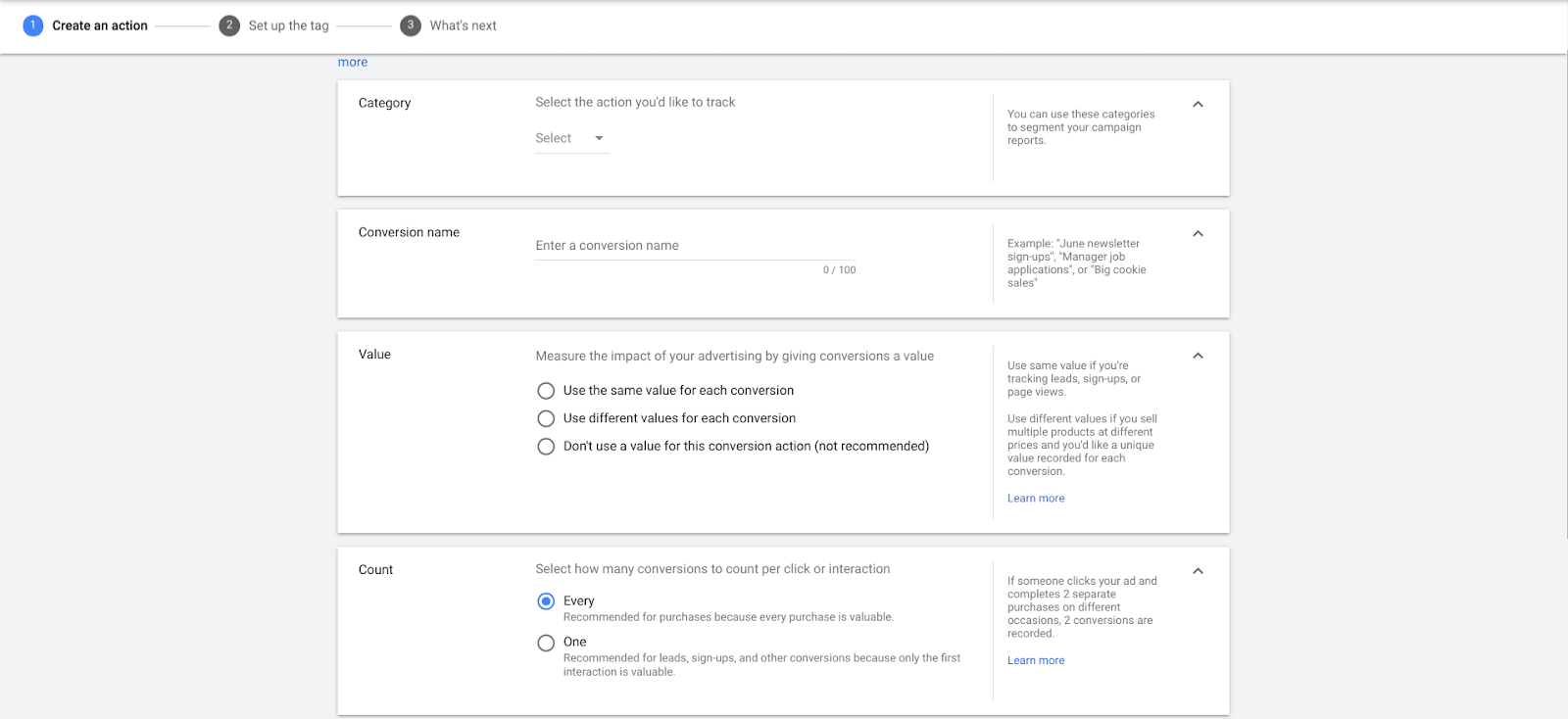
There are several conversion types in “Category”, such as purchase, add to basket, or begin check out in sales category, or contact, submit lead form, or sign up in leads category. The setting methods are the same. I will explain it in more detail in step 5. Here you can choose to “Submit Lead Form”.
After setting “Conversion Name”, you need to set up “Value”. If you intend to get more leads through the website, you can choose “Don’t use a value for this conversion action”, as the income generated from lead is zero at the moment.
If you are running an e-commerce website and purchase is your conversion action, what should you do if you have a conversion value in every order? Track purchases with a purchase event that carries the real transaction value — either through the Google Ads tag with dynamic values, or via GA4 ecommerce tracking imported into Google Ads.
The next step is to set up “Count”. “Every” counts every conversion action a visitor completes in one visit; “One” counts only the first. Google’s own guidance is “One” for leads and “Every” for sales — and since our worked example is a Submit Lead Form (a lead), we should set “One” here, reserving “Every” for e-commerce purchases where every transaction should be counted.
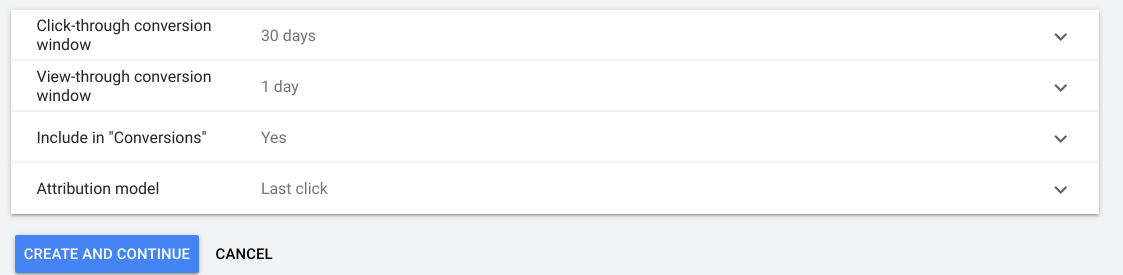
The number in “Click-through conversion window” and “View-through conversion window” represents the days after a visitor “Clicks” the ads or “Views” the ads then returns to the website and completes a conversion action. This conversion action is calculated into the conversion number of an ad. Most of the time we won’t make a conversation right after clicking the ads. “30 Days” means that if you return to the website and make a conversion within 30 days after clicking the ads, the conversion will be still counted into that ad. The meaning of “View-through conversion window” is the same. Note that view-through conversions can flatter Display (GDN) performance, so weigh them separately from click-through conversions.
The last step is the “Attribution Model” — the rule that decides how conversion credit is distributed across touchpoints. Since 2023, Google Ads offers only two options: data-driven (the default) and last-click; first-click, linear, time-decay and position-based were retired.
Last-click assigns all the credit to the final click before converting. But a conversion path rarely has one touchpoint — someone may see your ad on social, watch a YouTube ad, get retargeted on GDN, then search and buy. Data-driven attribution uses your account’s own conversion data to split credit across those touchpoints, which is why we leave it on the default for almost every account. We compare the options in more detail in our Google Ads attribution models guide.
5. Add a conversion tag to your website
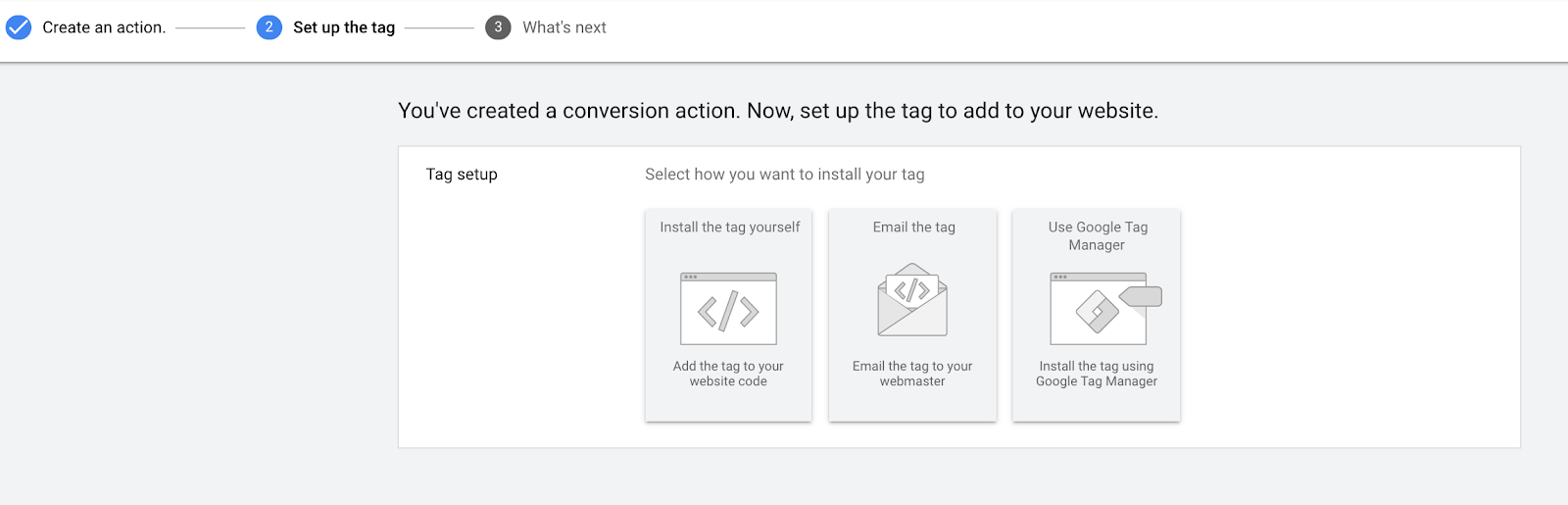
As you can see from the screenshots above, there are 3 methods to set up a conversion tag. In this article, we will demonstrate the first method, “Install the tag yourself”. Click “Install the tag yourself”, then you will see the following screen.
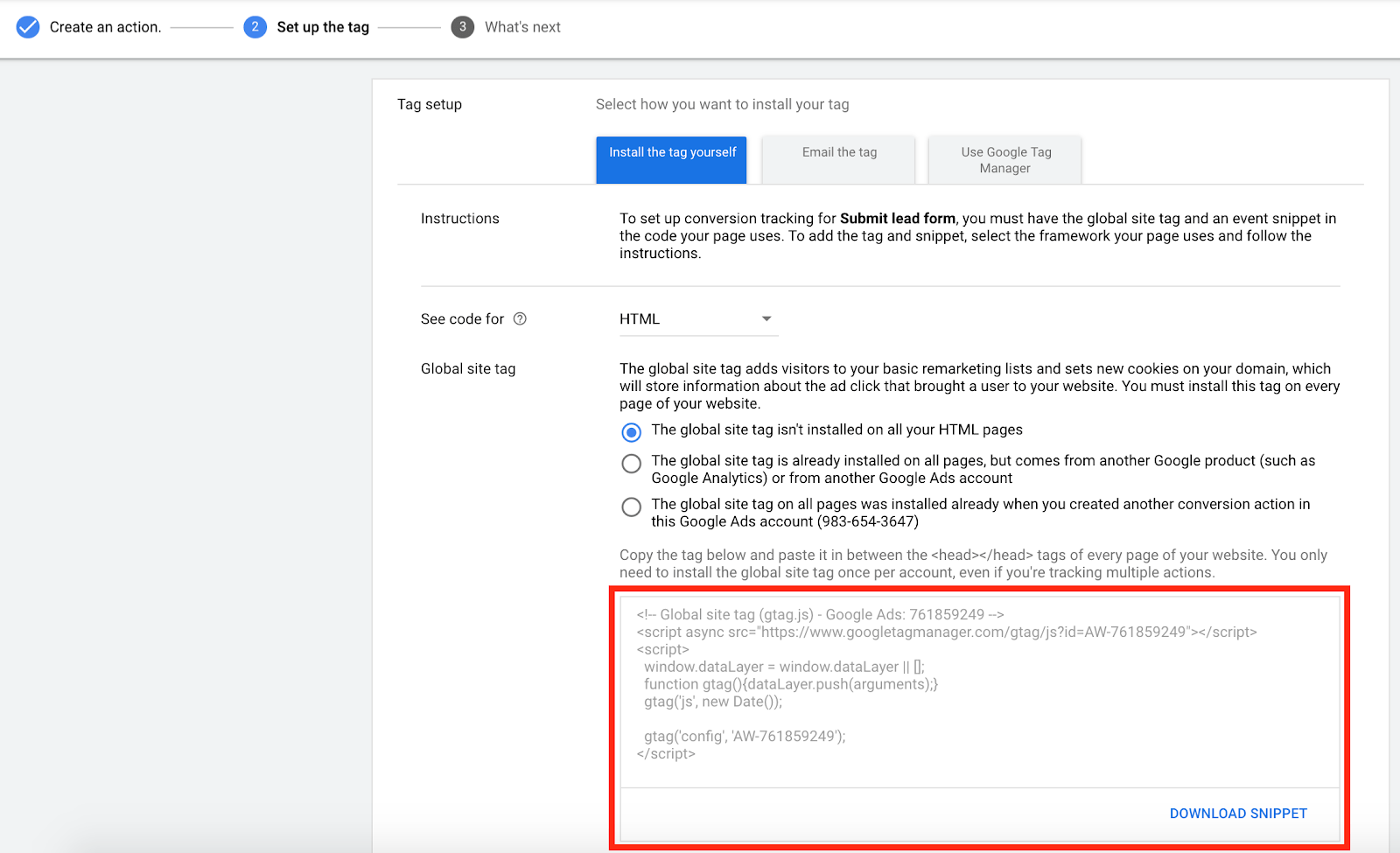
In the “Google tag” tab (Google renamed the global site tag in 2022), if you didn’t set up any conversion before, choose the option saying the tag isn’t installed on all your pages. Then you will see some tags at the bottom (shown in the red box). Copy and paste it to your website, for example, between the <head> </head> section in the Thank You Page of Submit Lead Form.
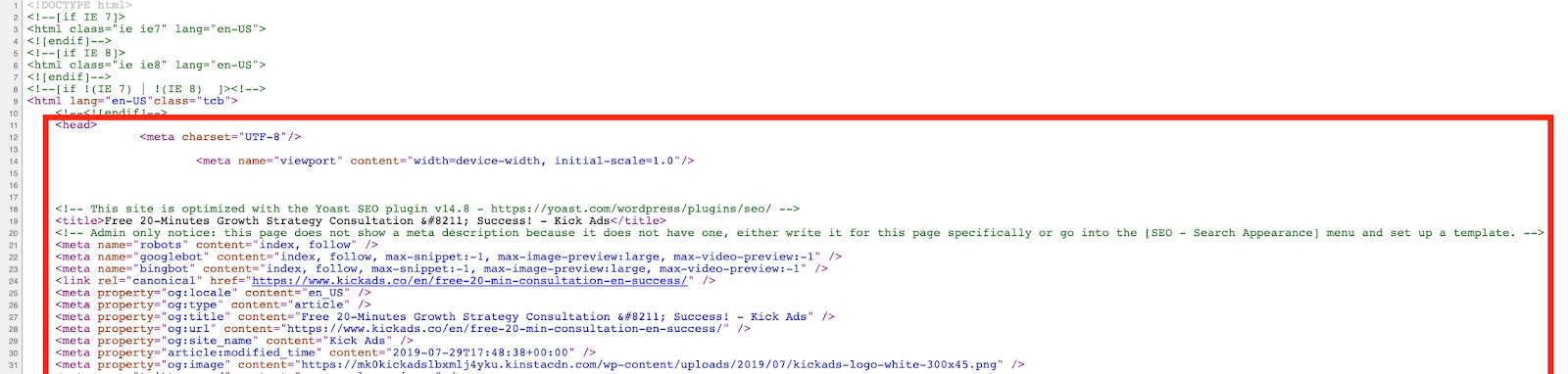
The above screenshot is the head section. Add the conversion tag shown above in this section of the Thank You Page. Different website systems have different ways to add this code. I am not going to explain it in detail here.
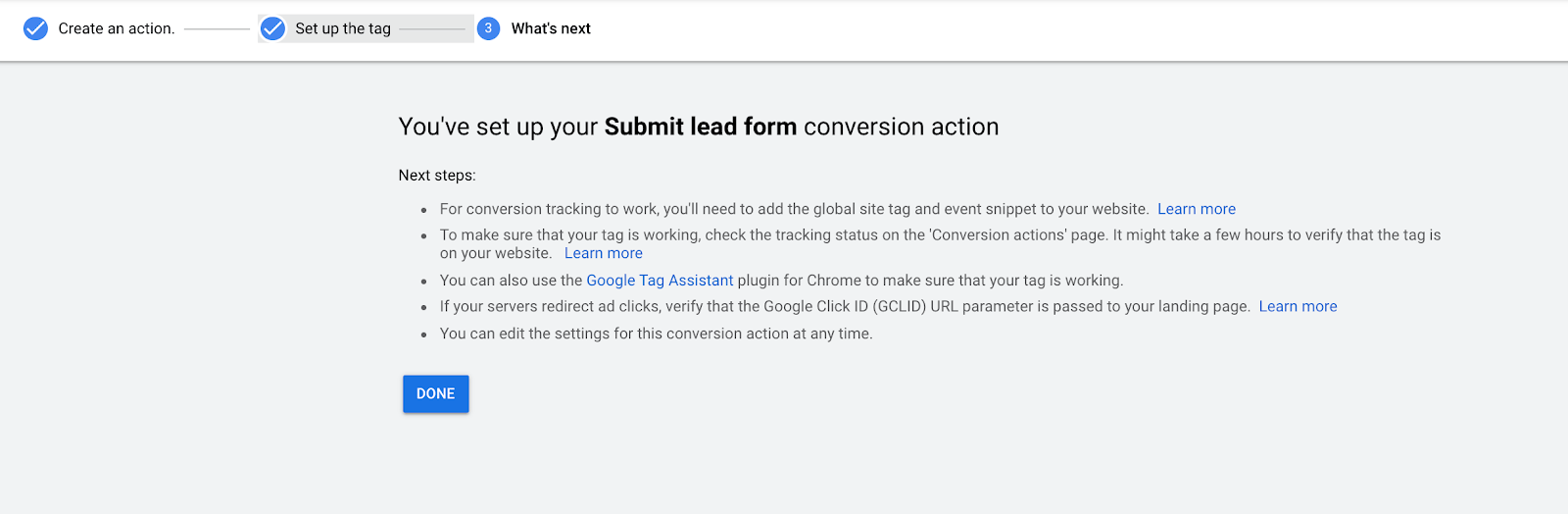
After adding the code, click “Next” at the bottom. The setup is all done when you see the following screen.
Two things that are standard in 2026
Enhanced conversions. Modern measurement expects hashed first-party data (email, phone) sent alongside the conversion. It recovers conversions that cookies alone miss and measurably improves Smart Bidding — turn it on for your primary actions; it is a checkbox plus a small tag/GTM tweak. (If the shift away from cookies is new to you, our primer on how ad tracking actually works covers the fundamentals.)
Pick the action that matters, not the easiest one. An account optimised on the cheapest action buys more of that action and nothing else, which is why a subscription app that bids on installs gets installs and not subscribers. We wrote up what changes when an app account is judged on paid subscriptions rather than on installs.
Consent Mode v2. If any of your traffic comes from the EEA or UK, Google requires Consent Mode v2 signals for measurement and remarketing to keep working. HK/MY-only advertisers can skip it, but if you sell into Europe, set it up before scaling spend.
Take action now
Now you have set up conversion tracking and let your account run for a while to collect data. Remember to develop the habit of analyzing and optimizing your ads monthly. Check the conversion and conversion rates of specific campaigns, ad groups, keywords, ads, and landing pages. Thus, you can allocate more budget to ads that convert well and improve ads or landing pages that didn’t perform that well. Conversion tracking covers the Google Ads side only. To see what the rest of your traffic did, GA4 sorts every session into a default channel, and our guide to GA4's default channel groups sets out the rule behind each one.
When you have collected enough conversion data, you can optimize your ads more effectively. I hope this article will give you a clearer picture that CPC or CTR should not be the sole indicator to judge the performance of your keyword ads.
If the action is already tracked in GA4, the quickest route is to mark it as a key event and import it — but for your primary conversions, remember our default advice: native Google Ads tag first.
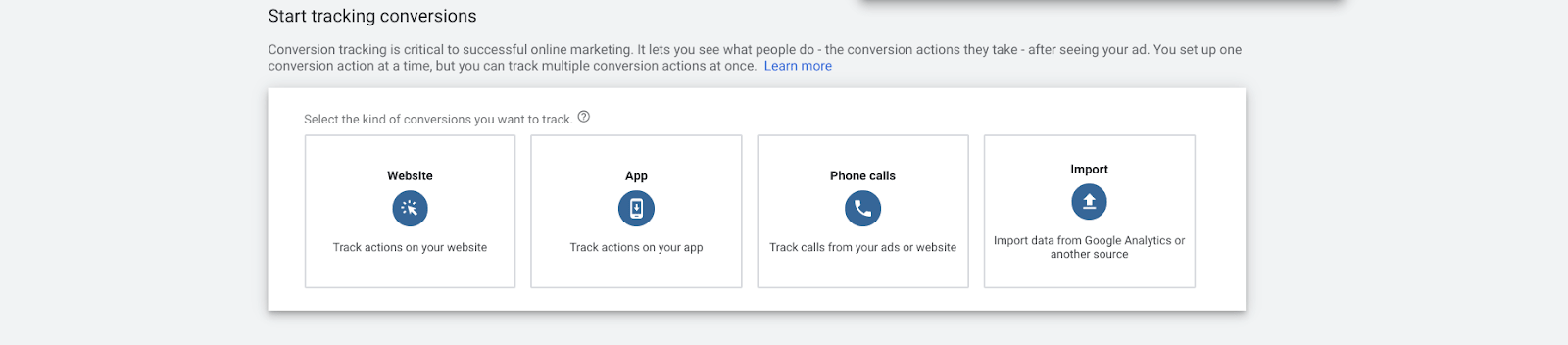
Finally, no matter which method you use, you should set up Conversion Tracking to your Google Ads account immediately. If you haven’t set up conversion, you should do it now!
FAQ
What counts as a conversion in Google Ads? Any meaningful action a visitor completes on your website that brings positive business impact - a purchase, a contact form submission, a WhatsApp or phone button click, a newsletter signup or an e-book download. Conversions are not limited to online stores.
Do I need conversion tracking if I don't run an online store? Yes. Lead-based businesses should track actions like form submissions and click-to-call, because CPC and CTR alone cannot tell you whether your ads bring real business results.
Should I set up conversions in Google Ads or import them from GA4? For primary conversion actions we recommend the native Google Ads tag — it reports faster, supports enhanced conversions and feeds Smart Bidding the cleanest signal. Importing GA4 key events is a lighter-weight alternative; just never track the same action from both sources, or you will double-count.
Should the conversion count setting be "Every" or "One"? It depends on your goal: choose "One" for lead generation (one lead per click) and "Every" for sales or e-commerce, where every purchase should be counted. "One" counts only the first conversion action per click; "Every" counts them all.
What is a click-through conversion window? The number of days after an ad click during which a completed conversion is still attributed to that ad. With a 30-day window, a visitor who clicks your ad and returns to convert within 30 days is still counted.
Ready to grow with Google Ads?
Kick Ads is a certified Google Partner agency in Hong Kong. We manage Google Ads and Meta Ads for Hong Kong and Malaysia businesses — honest reporting, no long-term lock-in.
Google Ads Management for HK Businesses →Free Google Ads Strategy Consultation →

About the author
Terrence Chung · Co-Founder, Kick Ads
Terrence is an ex-Googler, paid media and SEM trainer. He has managed Google Ads for ecommerce and lead generation businesses across Hong Kong and Malaysia since 2017, working closely on account strategy and optimisation direction.