
Google Tag Manager (GTM): Beginner's Guide
By Frankie Chan, Co-Founder · Updated 14 July 2026 · 10 min read
Jump to section
- What is Google Tag Manager?
- Why you need Google Tag Manager?
- Key Advantages Of Google Tag Manager
- What is Google Tag Manager Container ID?
- Setting up a Tag in GTM
- Google Analytics and Google Tag Manager
- What is a Trigger in Google Tag Manager?
- Creating a Variable in Google Tag Manager
- Data Layer Variables
- FAQ
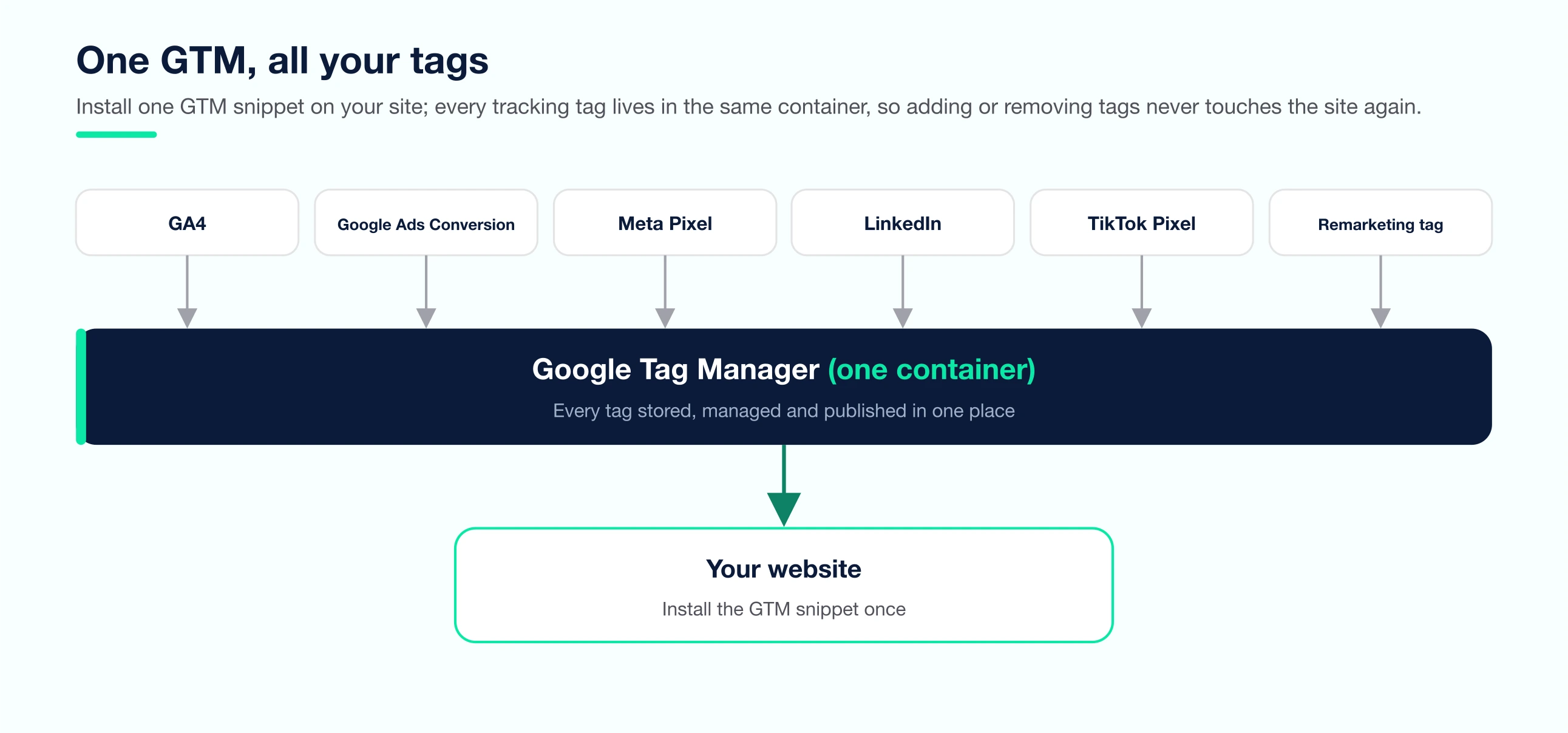
Every tracking pixel, analytics tag and conversion snippet on your site used to mean another request to your developer. Google Tag Manager (GTM) removes that bottleneck — you install one container code on your site, and every tag after that is managed from a web interface. If you are still fuzzy on what all these pixels and tags actually do, our primer on what ad tracking is explains the fundamentals first. This guide covers the fundamentals: what GTM is, how to set up an account, and how to create your first tags, triggers and variables. When you are ready to go deeper, Simo Ahava's blog is the reference for advanced GTM.
What is Google Tag Manager?
Google Tag Manager is a tool created by Google that enables you to create and control tags on a user interface without writing complicated code whenever you want to create a tag. It just lets you embed the GTM code into each page of your website, which eliminates the pain point of the manual process of creating tags and makes your marketing and tracking more effective and productive.
Primarily GTM is used for managing and tracking visitor’s behavior on the website, and Google allows you to use it for free.
Why you need Google Tag Manager?
Google Tag Manager does many things: primarily, you don’t need developers to code for you. Earlier, when GTM didn’t exist, webmasters had to insert code on their pages for every tracking and advertising service. They even need to insert code into elements like links and buttons to track user behavior. But with GTM, the only code you need to add to your page is the GTM code. It eliminated the burden of coding, which allows developers to focus on other tasks.
GTM loads tags asynchronously and lets you consolidate all your different codes in one place, which helps keep tags from bogging down and slowing your pages.
It’s a great tool that you surely want to try for yourself before concluding whether it’s a perfect fit or not. Maybe you already have a tagging method in place, or you have not felt the need for it.
But Google Tag Manager is free, so you can try it out practically risk-free.
Here in this article, we will show you how to set up an account, how to create a new tag, how to use Google Tag Manager with your Google Analytics account.
After reading this article, you can decide whether it’s the best tool for your business or not.
Key Advantages Of Google Tag Manager
GTM Removes Your Developer Bottleneck
Google Tag Manager eradicates the need for developers and allows you to understand your user behavior. It is a cost-effective and reliable solution that helps businesses adapt to the evolving marketing conditions and enable you to try various strategies for your business by understanding in-depth user behavior.
Google Tag Manager Keeps Your Site Fast
GTM tags are used asynchronously, which means that if a tag is slow loading, then it will not prevent other tags from being fired.
Centralized Tag Management
GTM allows you to manage all marketing and analytics tags used on your site in one place. It improves the efficiency of tag management and simplifies the process of adding, removing, or editing the tags.
Google Tag Manager Simplifies Event/Advanced Tracking
Event tracking is an area where Google Tag Manager can shine. Before introducing GTM, if you needed to track events such as clicks on various buttons or plays on your videos, you needed a developer to add the tracking code for every event. But GTM resolves that pain point — our GA4 event tracking tutorial walks through a full example, and once events are flowing you can import them into Google Ads with our conversion tracking guide.
How to Set Up an Account in Google Tag Manager?
Setting up a free account is very easy and a simple two-step process, but it’s different from Google Analytics or Gmail accounts. To secure an effortless set-up for you, we’ve recorded our process for setting up an account.
- Just hit on tagmanager.google.com and click on ‘Create Account.’ Then, insert your account name, country, and website URL as well as where you want to use Google Tag. Once you have done this, then click on the Create button.
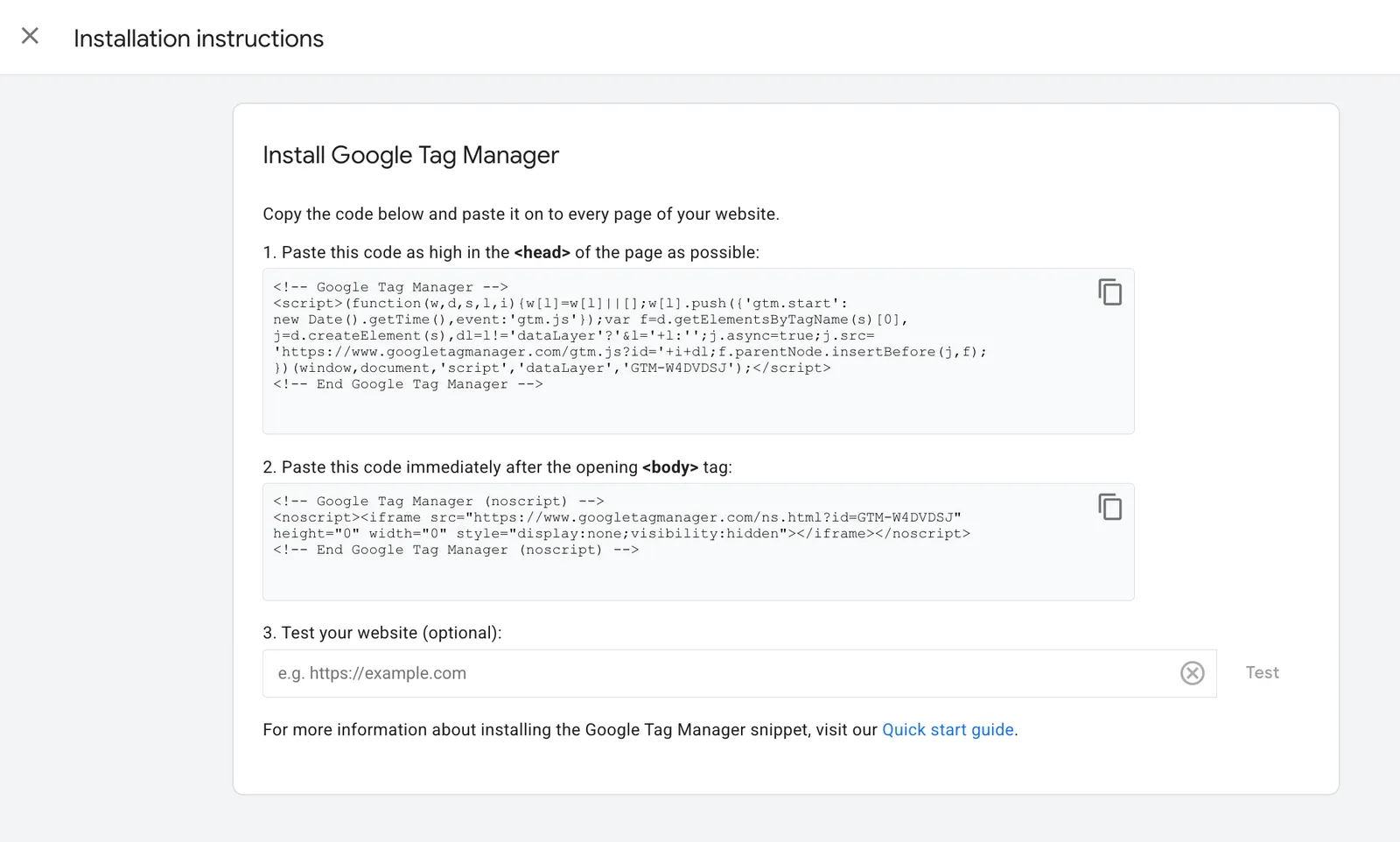
- In the next step, you will get the codes and instructions to embed the code in the <head> of your page, and the other after opening <body> tag. Apply the codes to your site, once you do this press ‘Ok.’
What is Google Tag Manager Container ID?
In GTM, you will find code like ‘GTM-TXAAA,’ which is so-called Container ID.
This ID is used to classify each GTM container tag uniquely, and the other part of this code, which is like ‘gtm.js,’ is the JavaScript library used by the container tag.
Once you add the container tag code to your website, then your GTM is considered to be installed on your site.
Precisely, Google Tag Manager is a container tag.
Setting up a Tag in GTM
Once you have the Google Tag Manager account, the first thing you should know is how to set up a tag in GTM. With this, you can create unlimited configurations of tags in Google Tag Manager.
It helps in creating in-depth reports on your visitor’s behavior, but it can become unproductive if you don’t manage your tags accurately.
For this, Google advises using the following naming practice: tag type – name of the app – detail.
For instance, maybe you name one tagging configuration, “Google Ads conversions – iOS – 2026-02 campaign,” and then another, “Google Analytics – CTA – About Us page.”
Through this, you can correctly classify and accumulate the data associated with particular campaigns or your web pages.
For example, the second tag, “Google Analytics – Call To Action – About Us page,” shows how well your About Us call-to-action button is functioning. The information you will obtain is very valuable, and you might lose if you named your tags more generally like “CTA Button”.
Now let’s jump to set up the tag:
Creating a Tag in Google Tag Manager
A tag is a group of JavaScript code that is used to obtain marketing data from your website or mobile app. Then it sends that data to third party services such as Google Analytics, Google Ads, Meta, X (Twitter), Comscore, etc.
Before you create your first tag, make sure you have created your GTM container and installed it on your site:
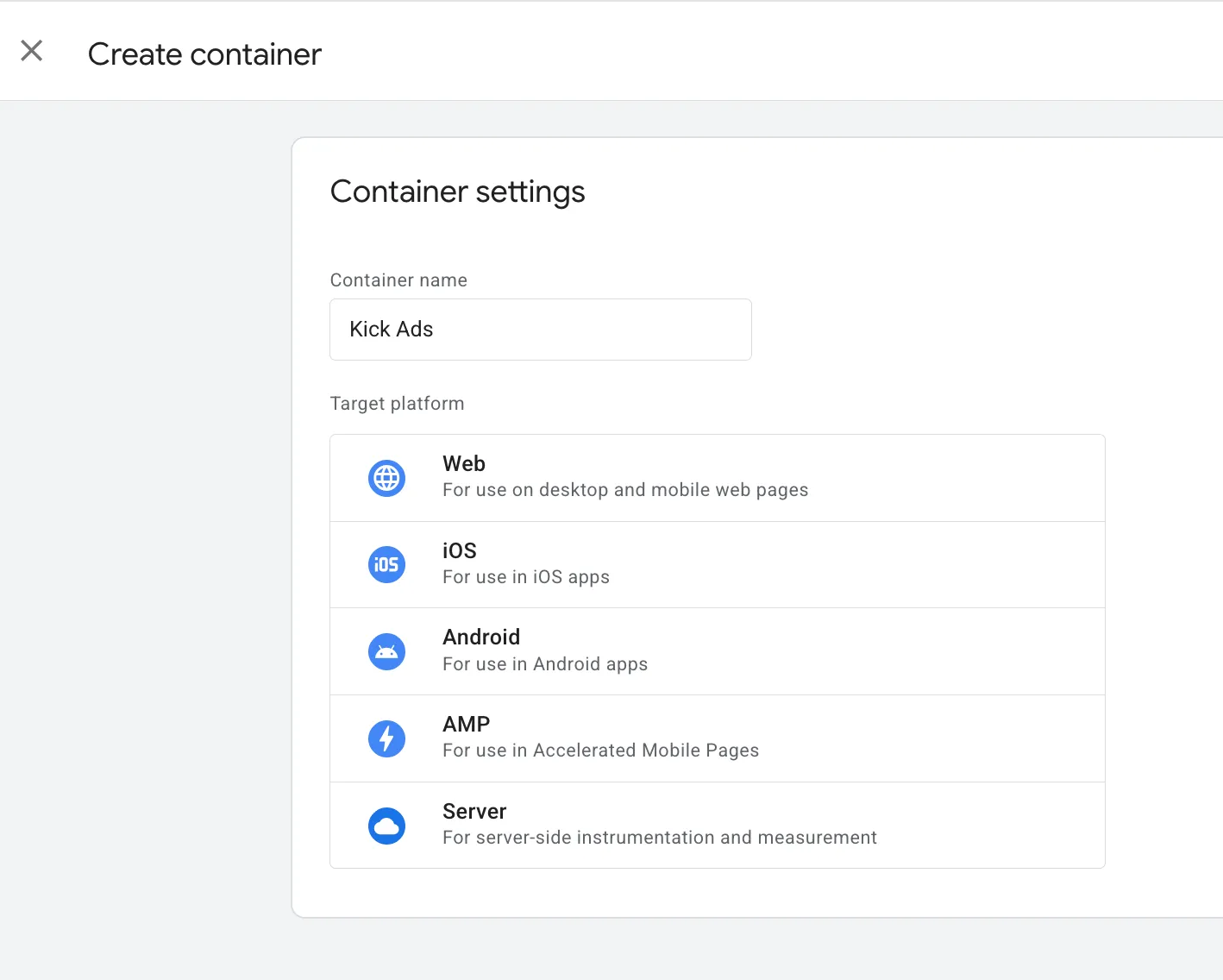
Create a container: at tagmanager.google.com, create an account, name the container (usually your site name), and pick Web as the target platform.
Install it on your site: GTM gives you two snippets — the first goes as high as possible in every page's <head>, the second right after the opening <body> tag. Install this once and every tag from then on is managed inside GTM without touching site code.
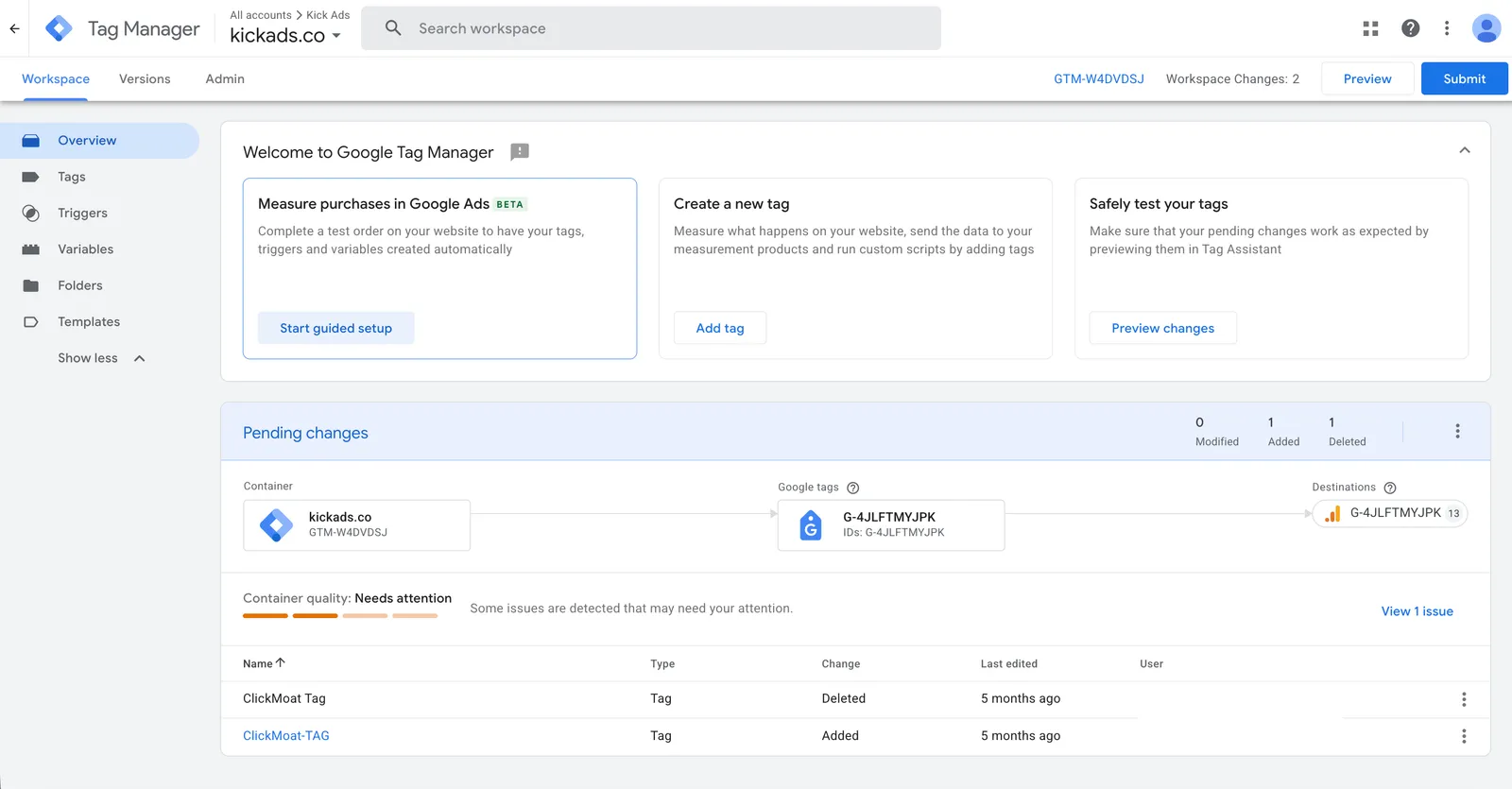
How to create a Tag in GTM?
STEP1: In the GTM Workspace, click "Add New Tag".
STEP2: Give the tag a clear name, then click "Tag Configuration" to choose a tag type.
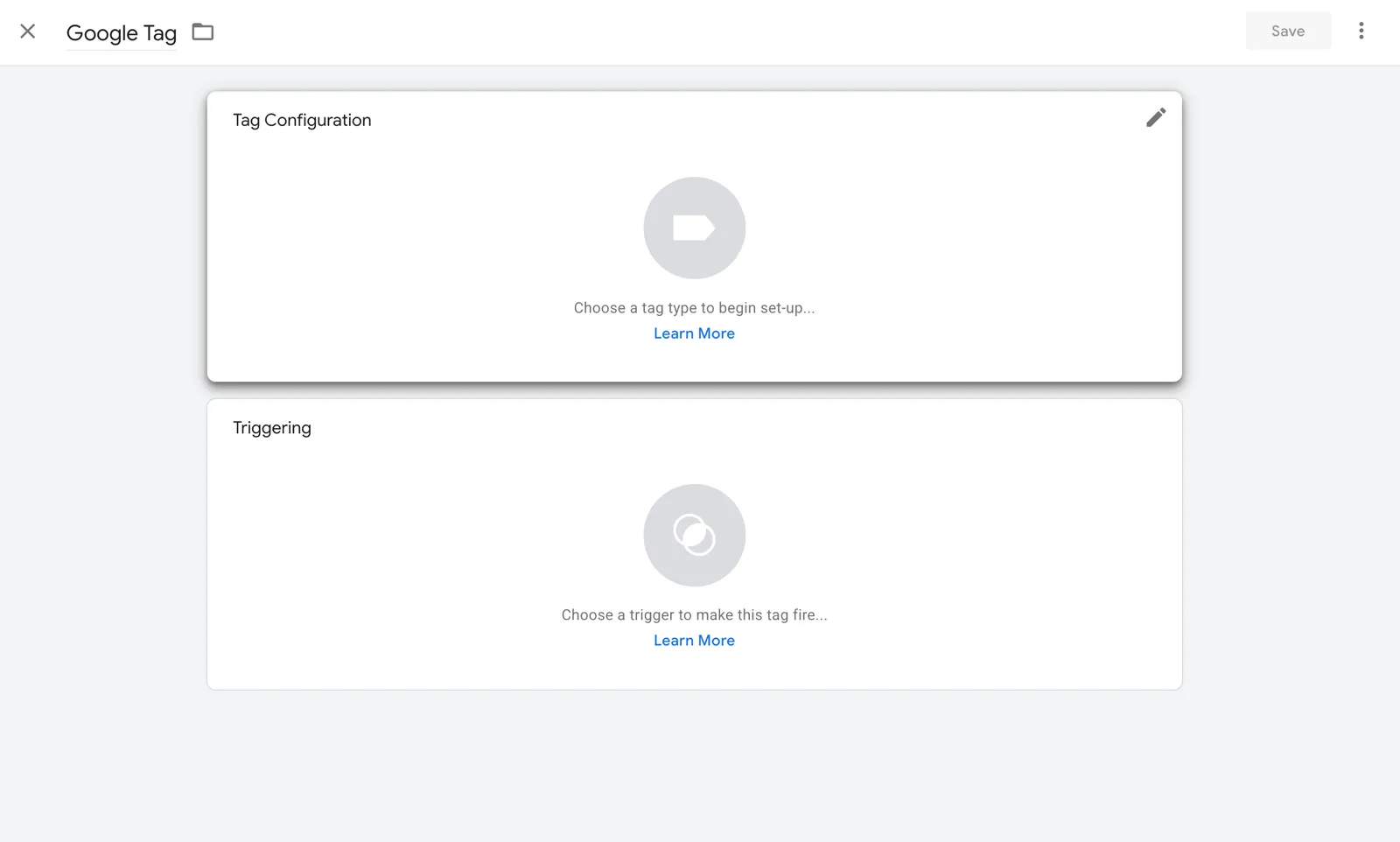
STEP3: Choose "Google Tag" as the tag type and enter your Tag ID (G-XXXXXXXXXX, found in GA4 under Admin → Data streams). In modern GTM a single Google Tag with your Tag ID is your base GA4 tracking — you no longer create separate GA4 Configuration and GA4 Event tags.
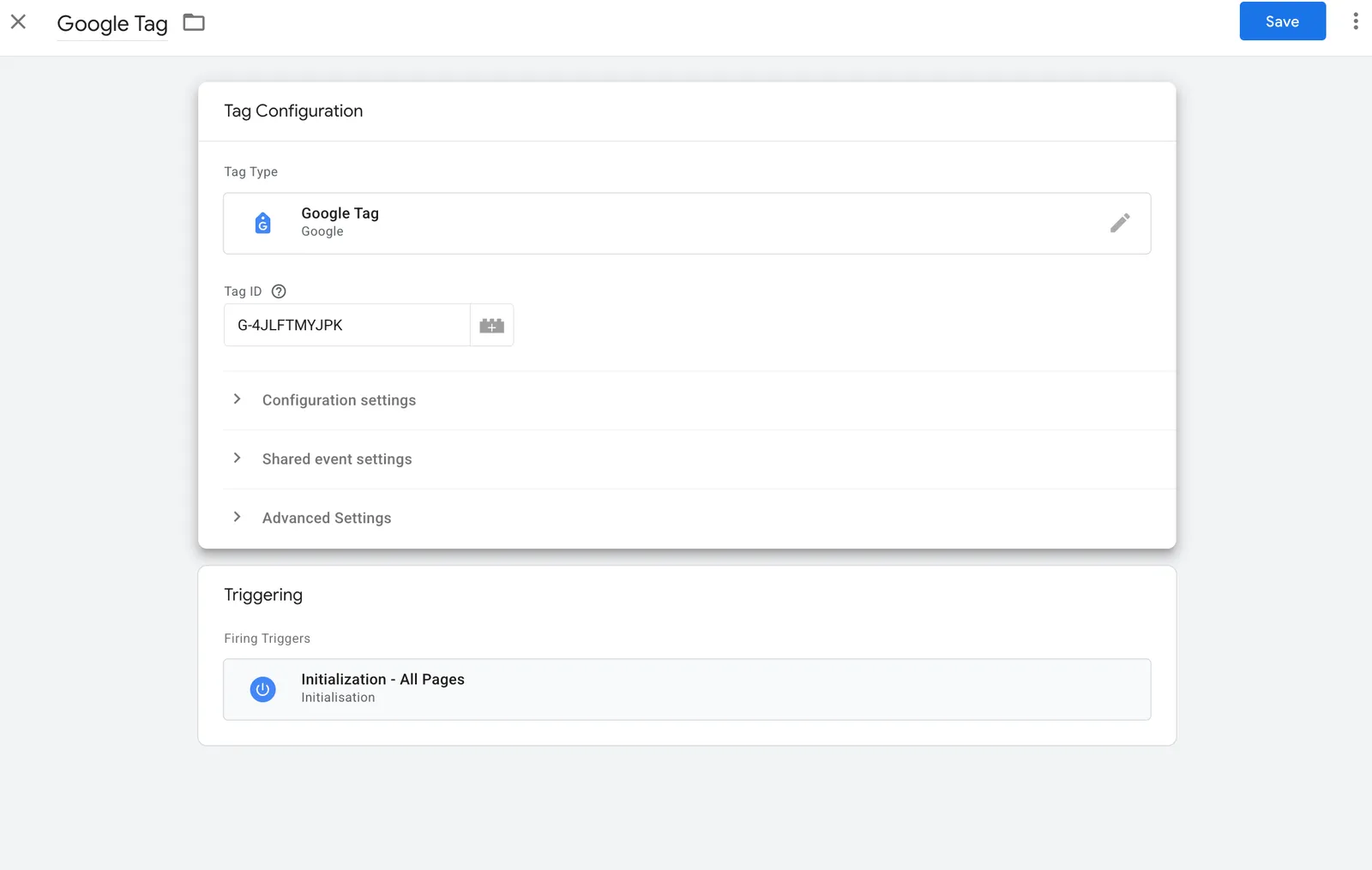
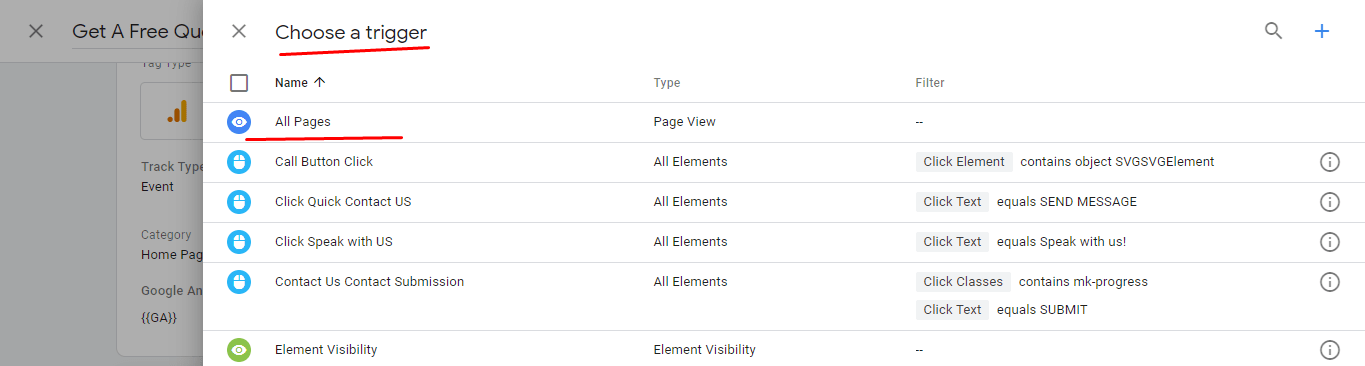
STEP4: Under Triggering, choose "All Pages" so the tag fires on every page load.
STEP5: With the configuration and trigger done, click "Save" (top right, visible above).
STEP6: Back in the Workspace, click "Submit" (top right) to make the tag live.
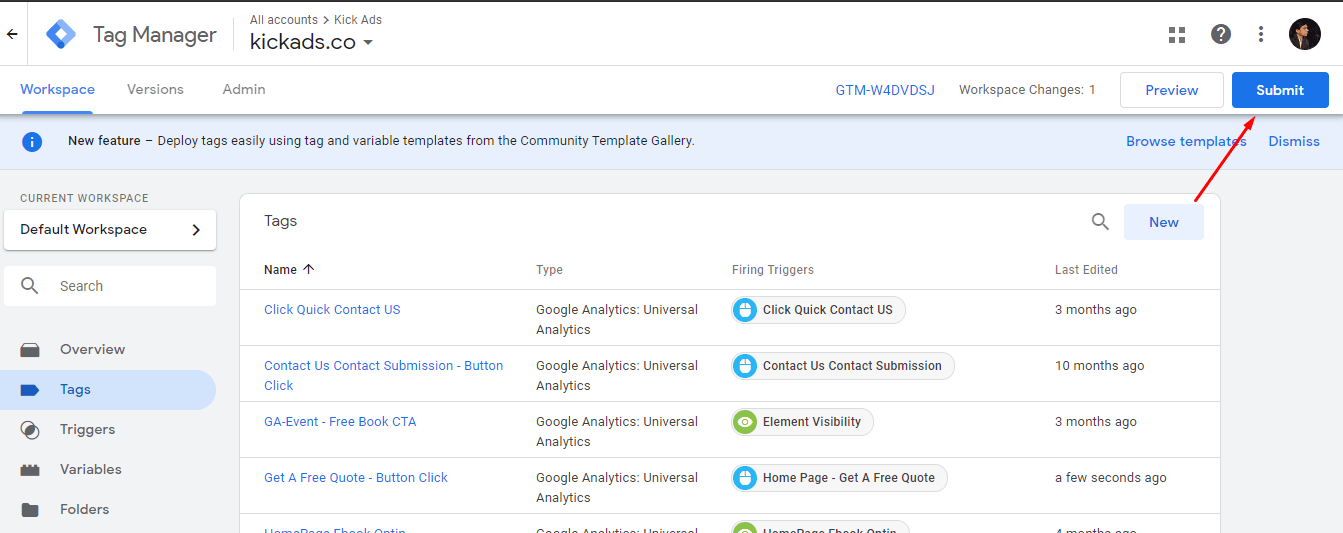
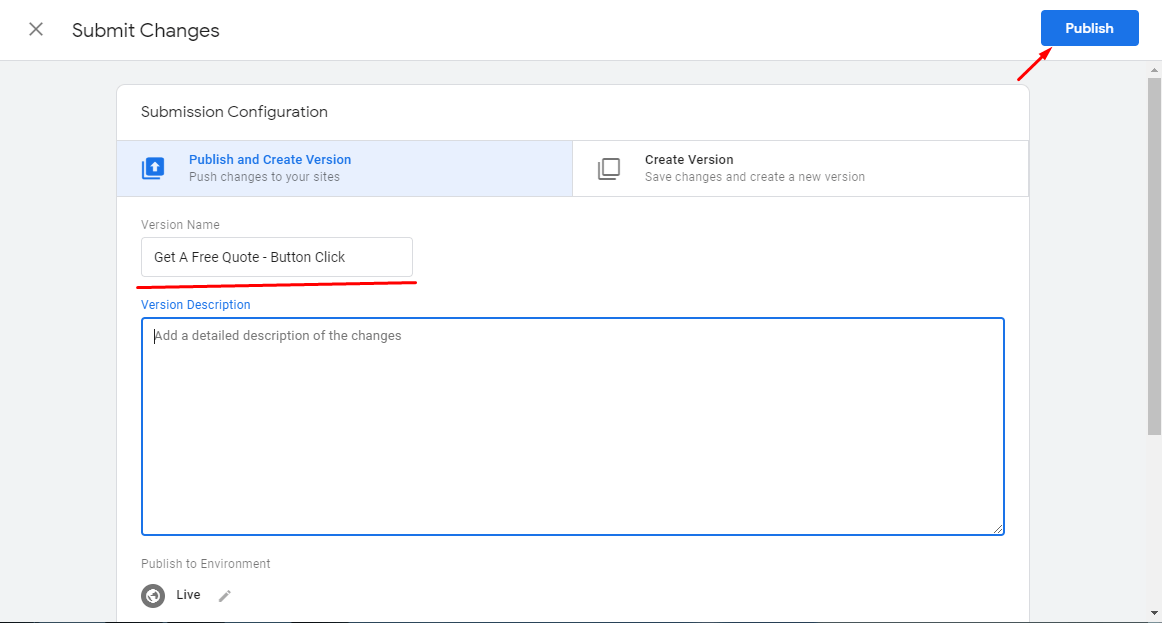
STEP7: Choose "Publish and Create Version", then click "Publish" to push the tag to every page of your site.
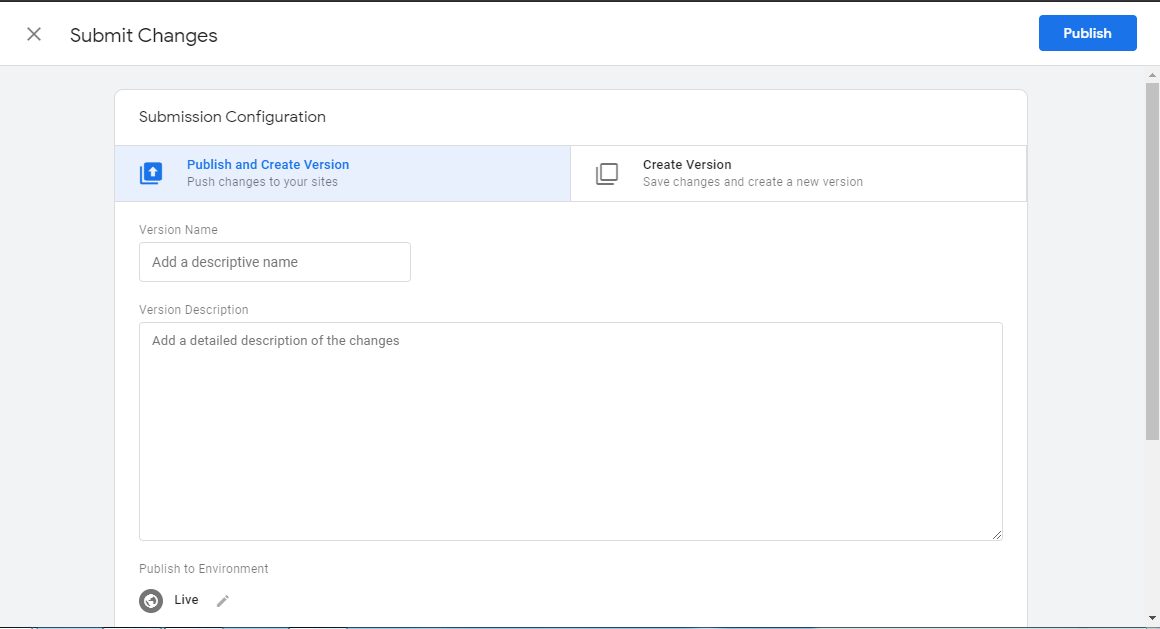
STEP8: Add a name and description for this version to keep things organised.
STEP9: Confirm the tag appears in the "Version Summary" report — it is now published.
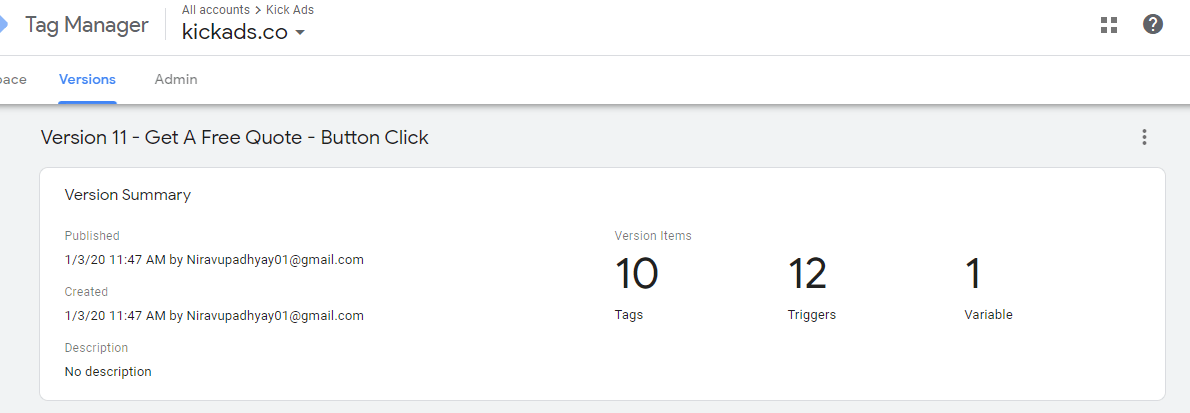
Now we have created the first tag successfully.
Google Analytics and Google Tag Manager
If you want to use GTM in connection with Google Analytics, there are a few steps that you need to take. (If you are still setting up Google Analytics itself, start with our GA4 essential guide.) Though it is a worthy effort — connecting GA4 through GTM centralises your tracking management and makes event tracking easier.
First, remove any hard-coded Google Analytics snippet from your site pages — if you leave the on-page snippet in alongside GTM, GA4 will count every hit twice.
Then connect GA4 the modern way: create a single Google Tag (exactly as in STEP3 above), enter your G- Tag ID, and set it to fire on the All Pages trigger. That one tag is your base GA4 tracking — there is no separate Measurement-ID variable to create.
What is a Trigger in Google Tag Manager?
You can define a trigger as a set of rules that tells your tag when to start firing. The primary trigger in Google Tag Manager is the all pages trigger, which tells your tag to fire on every page when the page loads. This trigger is used with the Google Analytics tag.
Built-in GTM Trigger
There are many built-in triggers in Google Tag Manager that you can use to fire the tags. GTM has triggers for YouTube videos, custom events, scroll depth, button clicks, and more.
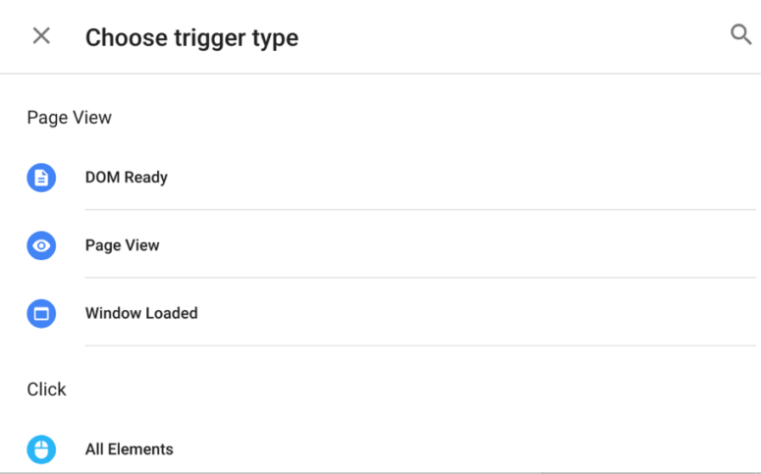
Every trigger in GTM uses its own set of rules for firing the tags.
For instance, you can set up a YouTube trigger to fire based on many different interactions a user performs on your videos. You can fire this tag when a user starts, seeks, pauses, buffers, or finishes the video. This tag can also be fired based on viewing progress, such as when the user has viewed 50% or watched 3 minutes.
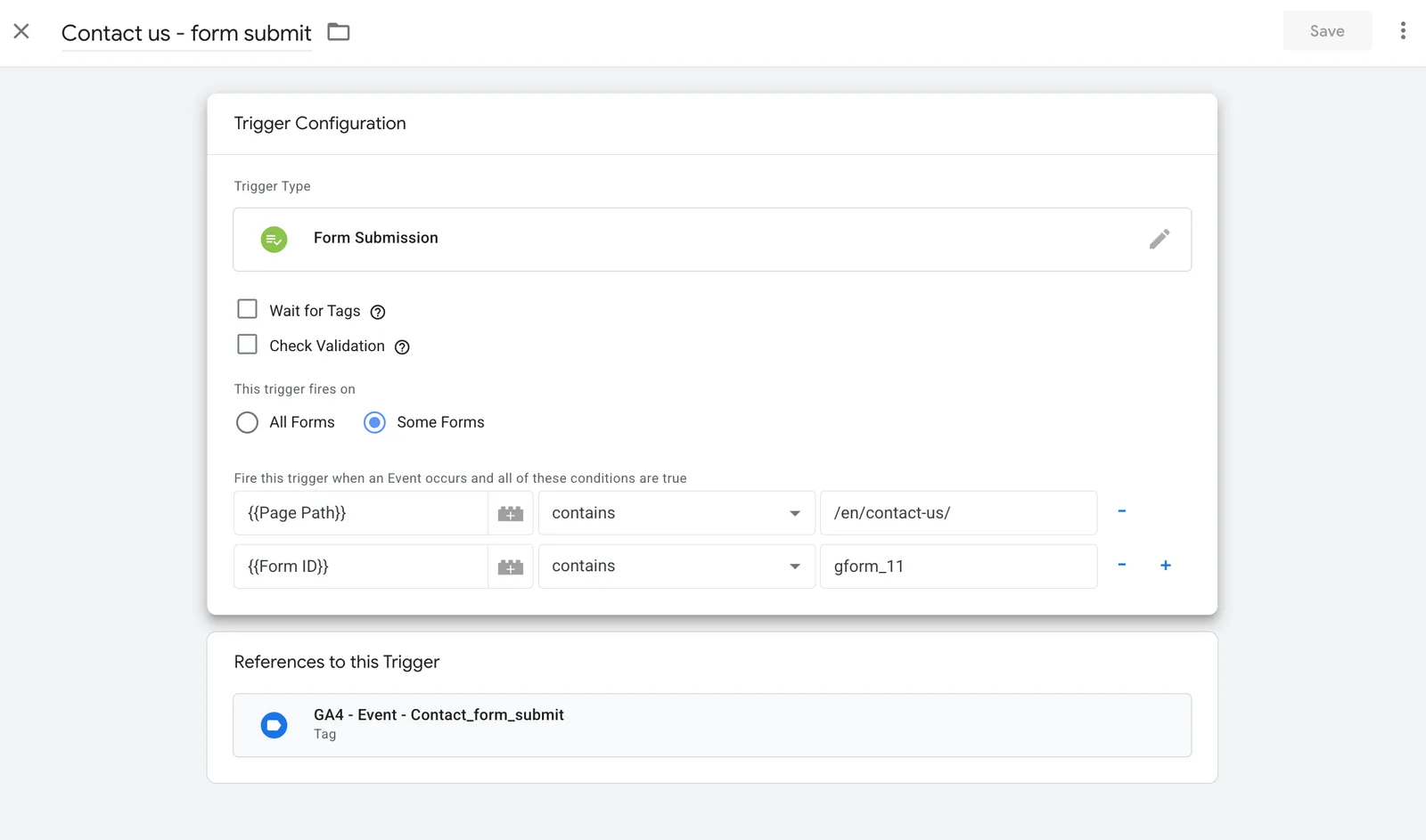
A more practical example is a Form Submission trigger. The one below only fires when a form is submitted on the contact page (Page Path contains /en/contact-us/) and the Form ID is gform_11 — so what you track is a genuine contact enquiry, not just any form on the site.
Creating a Variable in Google Tag Manager
A variable is a reusable placeholder that returns a value for tags, triggers or other variables to reference. GTM has two kinds: built-in variables and user-defined variables.
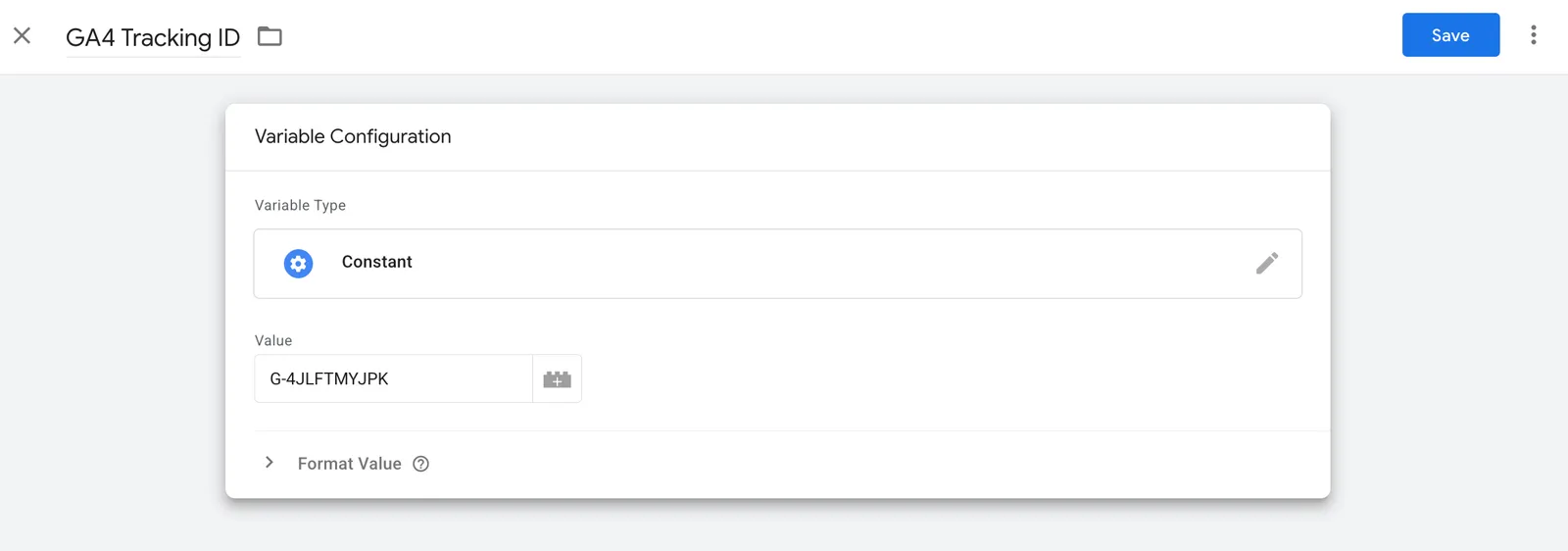
How do you create a user-defined variable? Take a Constant as an example — when several tags reuse the same value (say your GA4 Tracking ID), store it once as a Constant and you only ever update it in one place.
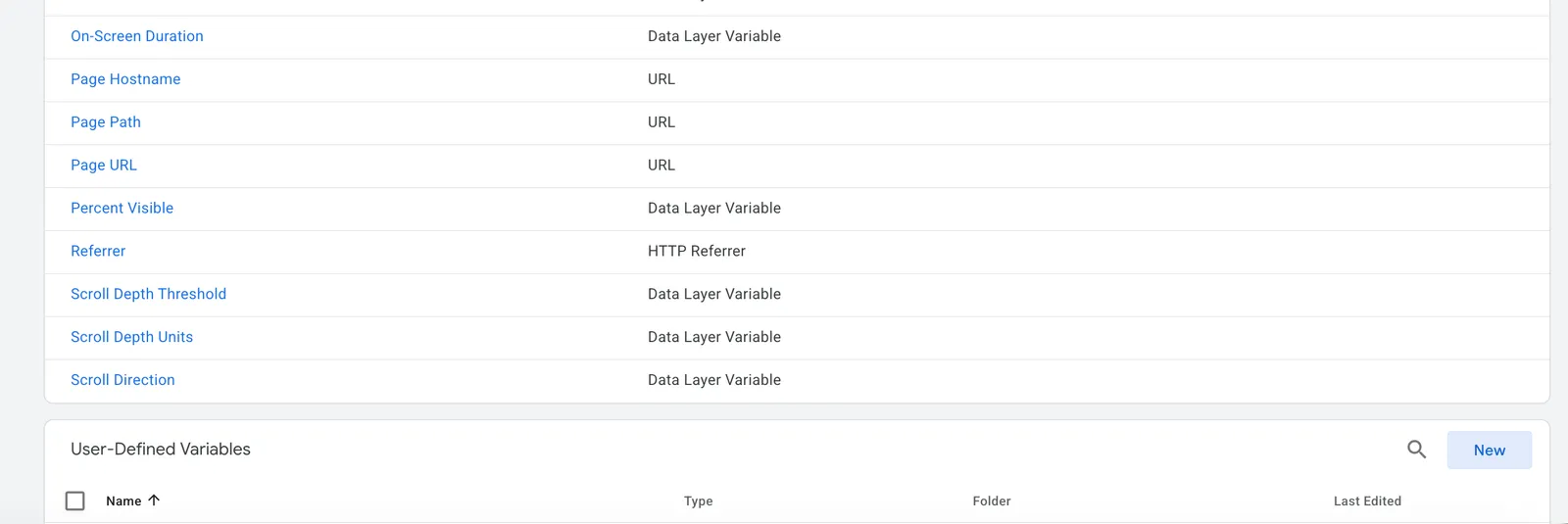
Step 1: In the left nav, click Variables. Built-in variables (Page Path, Referrer, etc.) are already available; scroll to User-Defined Variables and click New.
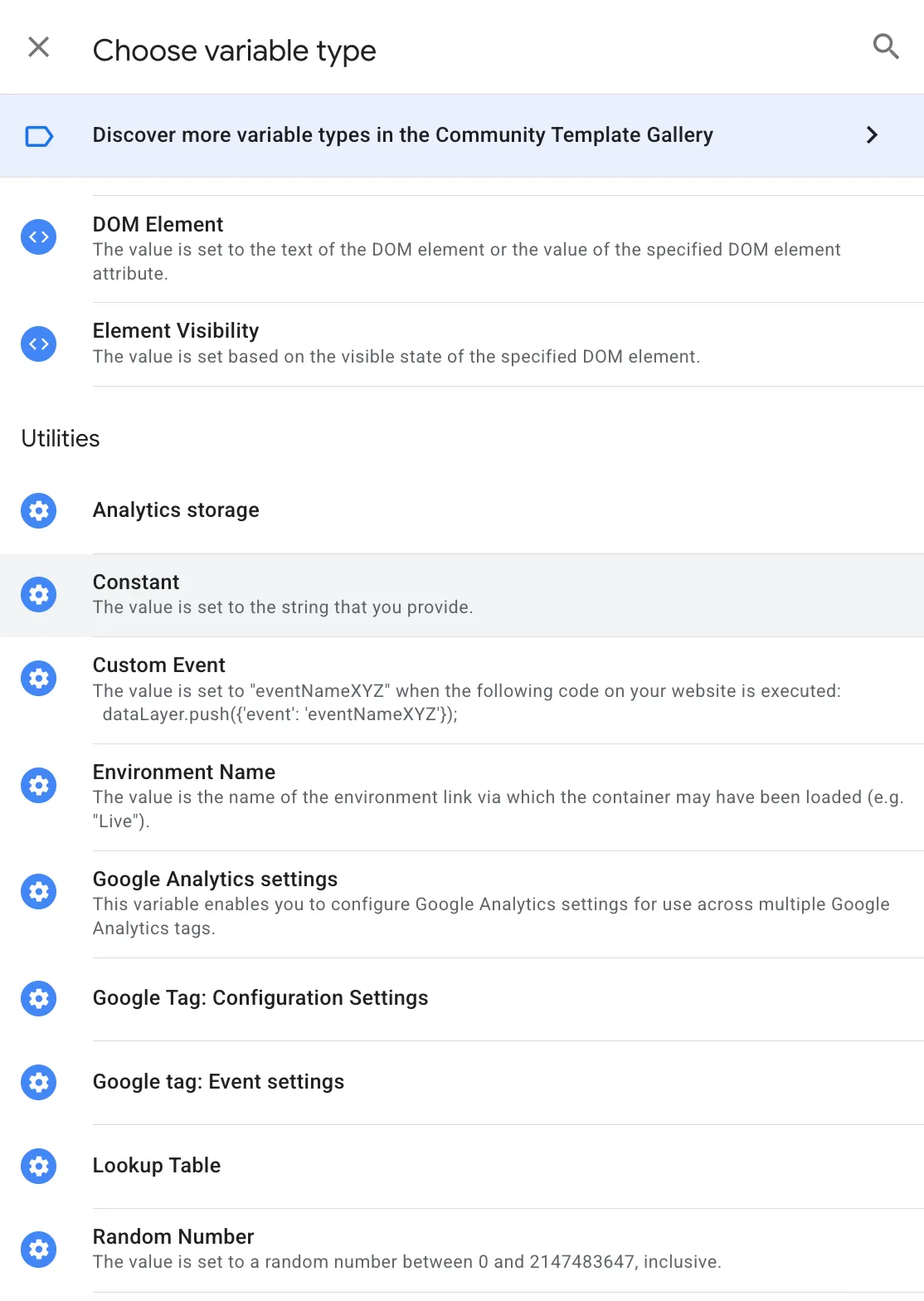
Step 2: Name the variable (e.g. "GA4 Tracking ID"), click Variable Configuration, and choose Constant from the type list.
Step 3: Enter the value in the Value box (e.g. your GA4 Tracking ID G-XXXXXXXXXX) and click Save at the top right. Any tag can now reference {{GA4 Tracking ID}} instead of hard-coding the ID. (Tip: for basic GA4 tracking you can just type the ID into the Google Tag; a Constant is useful when many tags share the same value.)
Next, edit your tag to reference the variable you just created.
Data Layer Variables
If you want to learn even more about your user behavior, you must use the data layer. Google Tag Manager gives the ability to create custom data layer variables.
These data layer variables can pass the dynamic values from your CMS, back-end system, or e-commerce platform into GTM. Then GTM can record these values in your tags and pass them on to your reports. This variable can pass critical values to all your marketing systems at once.

What’s next?
Google Tag Manager can clearly make your life easier. Ensure that you are using the data that you are setting up in GTM.
Once GTM is in place, wire it up properly: send events to GA4, import the ones that matter into Google Ads as conversions, and consider server-side tagging once your traffic volume justifies it.
GTM only pays off when the data it collects actually drives decisions.
FAQ
What is Google Tag Manager? Google Tag Manager is a free tool from Google that lets you create and manage tags through a user interface, without writing complicated code each time. You embed the GTM container code once on every page of your site, and all other tracking tags are managed inside GTM.
Is Google Tag Manager free to use? Yes. GTM is provided by Google for free, so you can try it practically risk-free before deciding whether it fits your business.
What is a GTM Container ID? It is the code that looks like GTM-TXAAA, used to uniquely identify each GTM container. Once the container tag code is added to your website, GTM is considered installed.
What is a trigger in Google Tag Manager? A trigger is a set of rules that tells a tag when to fire. The most common is the All Pages trigger, which fires on every page load, and GTM also has built-in triggers for YouTube videos, custom events, scroll depth, button clicks and more.
Does Google Tag Manager slow down my website? No. GTM tags fire asynchronously, so a slow-loading tag will not block other tags, and consolidating all your tracking codes into one container supports faster page loading.
Ready to grow with Google Ads?
Kick Ads is a certified Google Partner agency in Hong Kong. We're a Google Partner agency managing paid media for Hong Kong and Malaysia businesses since 2017.
Google Ads Management for HK Businesses →Book a Free Strategy Consultation →

About the author
Frankie Chan · Co-Founder, Kick Ads
Frankie is an ex-Googler and paid media strategist. He has managed Google Ads and Meta Ads for ecommerce and lead generation businesses across Hong Kong and Malaysia since 2017, working closely on strategy, reporting and client growth planning.